










If you often personalise pages in Microsoft Dynamics 365 Business Central, you'll probably know only too well which fields are available to add. But did you know that if you customise a role, you’ll find more fields available to choose from – including ones that could solve some common requests?
For example, if you wanted to have your Balance LCY compared to the Balance in the currency specific to a vendor next to one another on the vendor page, you could:
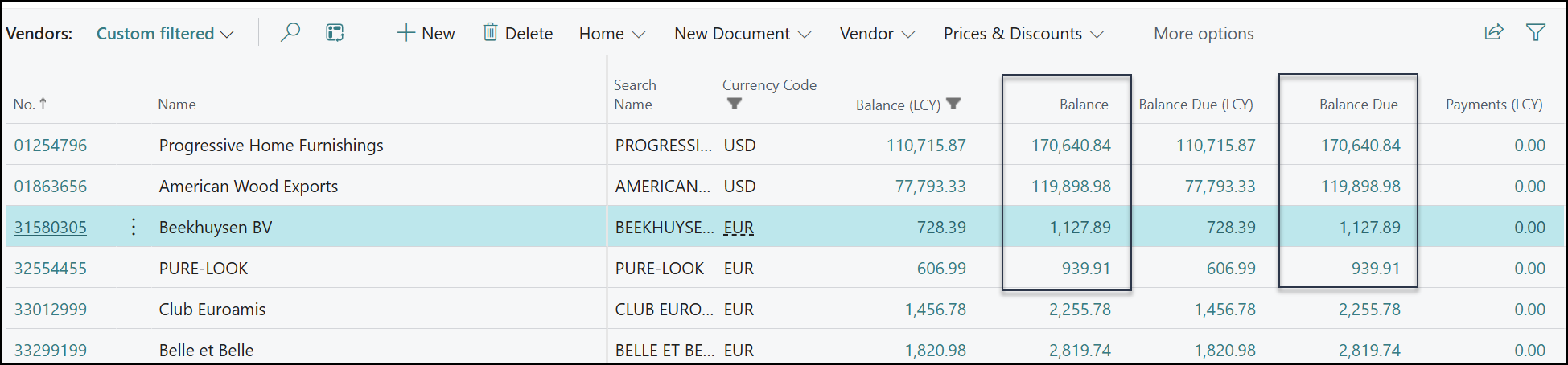
This helps you see the GBP value of a balance next to the EUR/USD/etc. – something you can't do via personalisation.
1. On the Profiles (Roles) page, open the Role you or your users will be using.
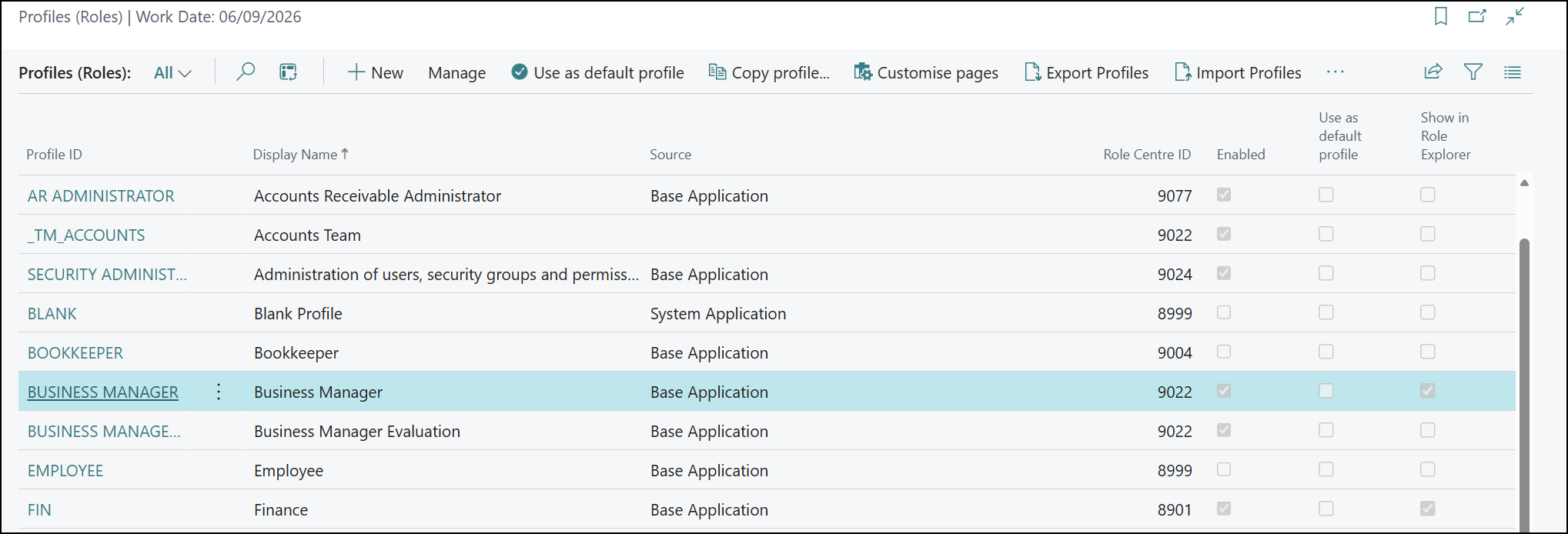
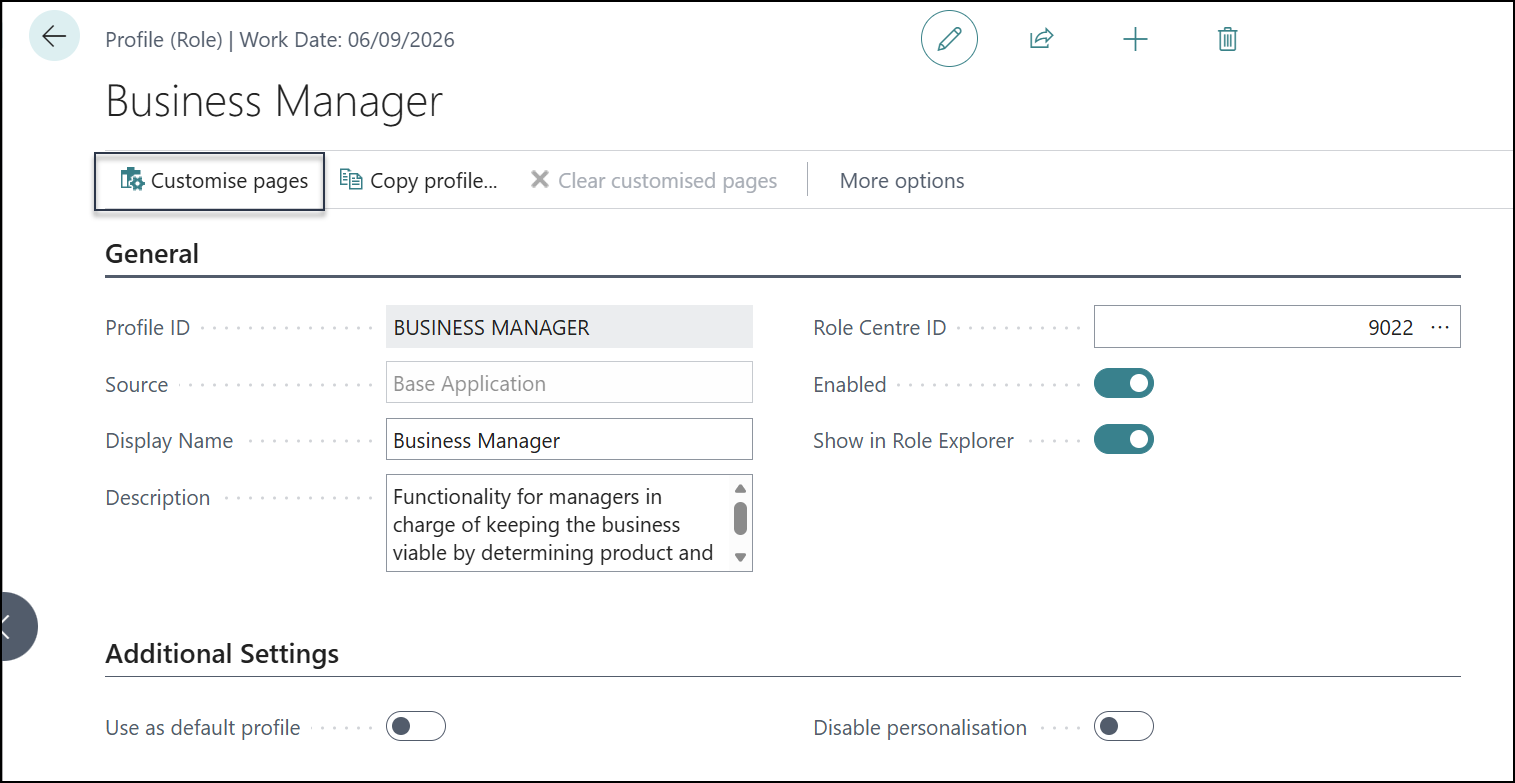
2. Select Customise pages to begin the process. Top tip: consider making a copy of this profile for specific job roles or heavy customisations, so you can always roll back to the original if needed.
3. Go to the page with the field(s) you would like to add, select +Field and drag/select the one you want.
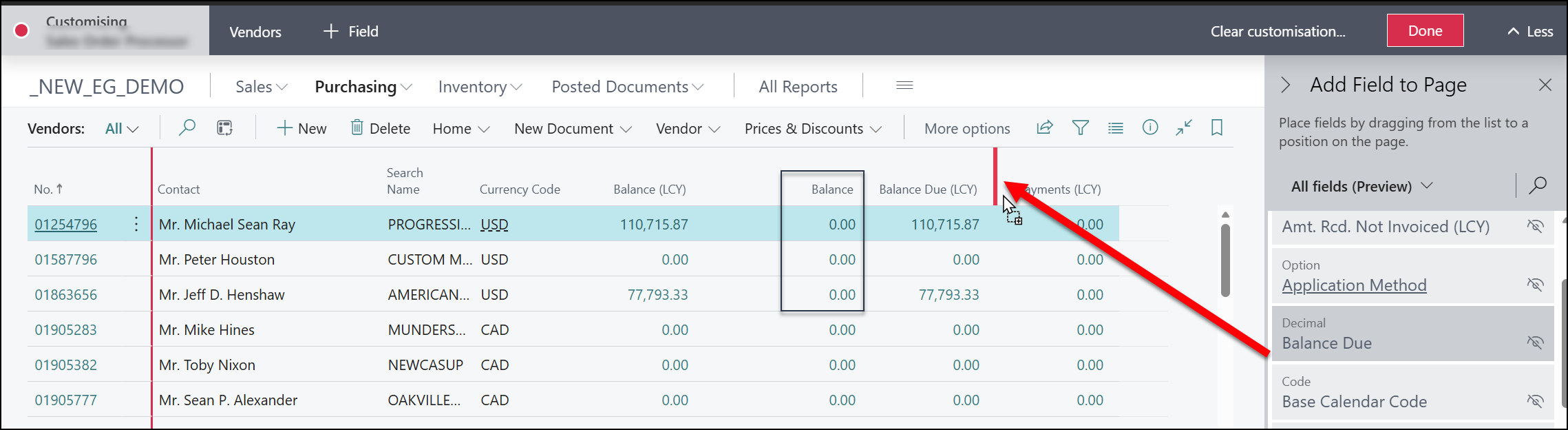
It's normal to have a lot more fields available on some pages than others. Some options include the non-LCY balances, Number of orders/invoice/etc. a customer/vendor has and figures such as the amount Shipped Not Invoiced for customers. It’s always worth exploring on any given page whether customisation makes it possible to display information you’d like but wouldn’t normally see there.
4. When you add in certain numerical fields, if there’s a calculation behind it, you might find that the values will say 0.00 until you refresh the page to see the correct, calculated amounts.
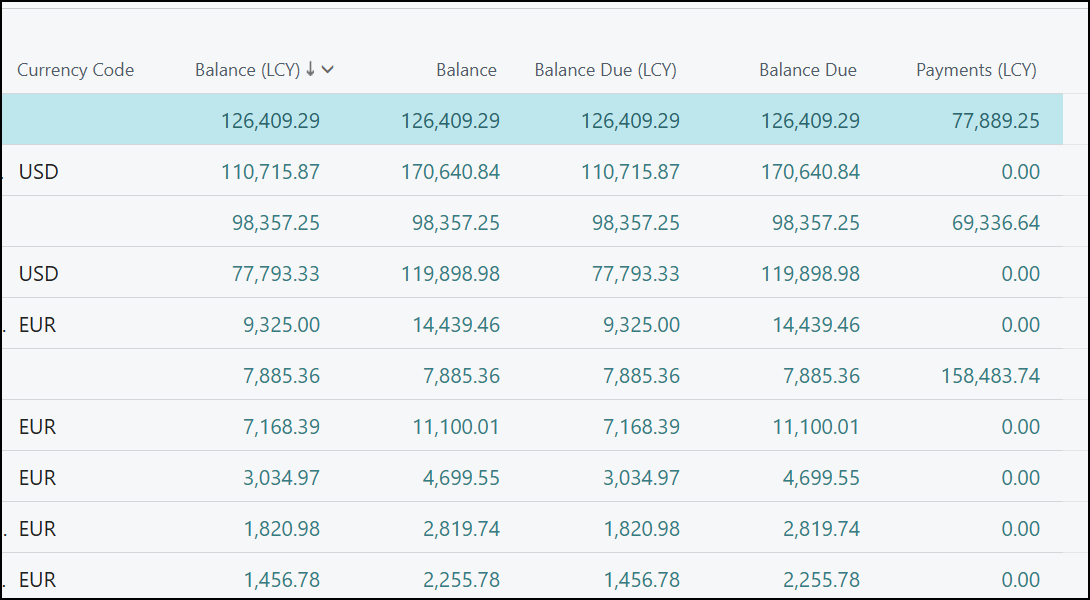
And that’s how you can go further and get better insight with additional fields in Business Central.
Just one thing to remember: when you add in these extra, calculated fields, it’s another thing Business Central will need to calculate when you go to the page. The more of these fields present, the longer it could potentially take to load – so don’t go adding every single field in for the fun of it!
For Business Central training, or a conversation about moving your Business Central support to Tecman, drop us your details today.