







Do you have multiple companies within Business Central and wish there was a way to access an easy overview of key information? Say hello to the Company Hub, which has both a dedicated Role Centre and a Company Hub page which provides you with just that!
The Company Hub in Business Central is a simple dashboard that lets you see important information from several different companies in one place. Once you connect each company using its environment link, the Hub shows things like balances, overdue invoices, and tasks, so you don’t have to jump in and out of different systems. It acts like a single home screen that gives you a quick, clear snapshot of everything happening across all the companies you have access to.
If you haven’t set the Company Hub up previously, upon initially loading the page you will be presented with a notification from which you can select Setup to begin.
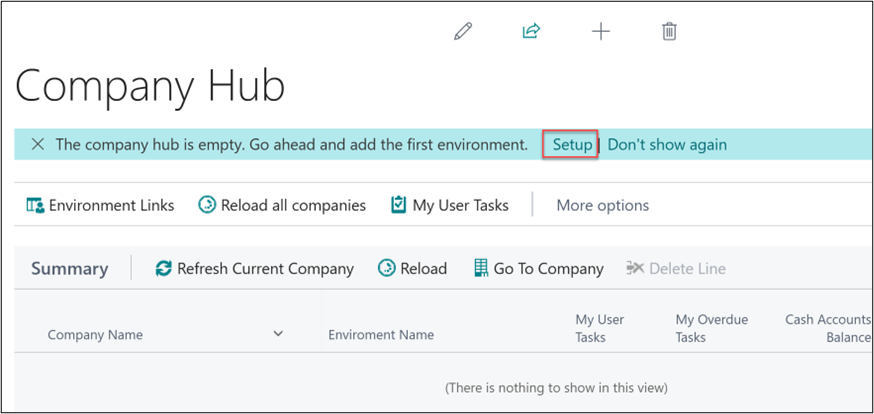
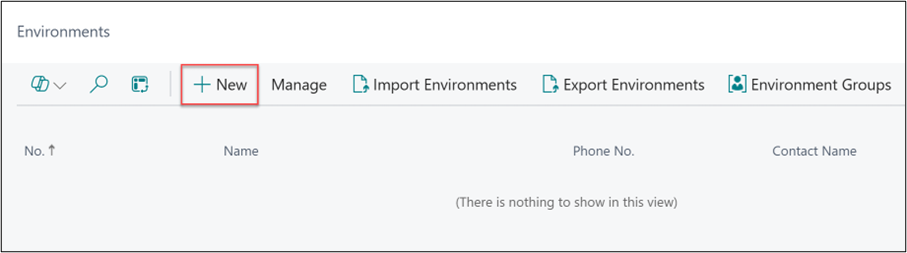
Next, select New.
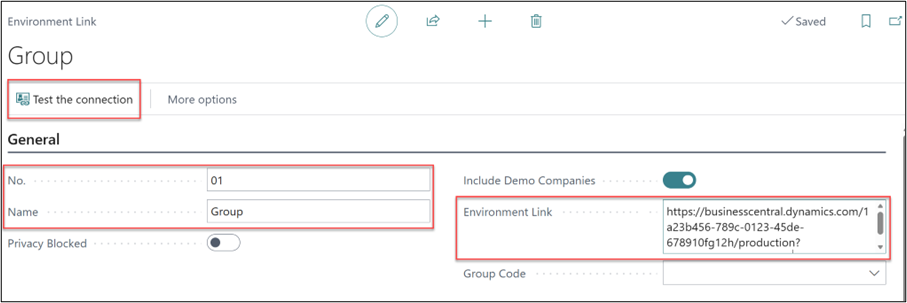
On the Environment Link screen, start by filling in the No. and Name fields to help identify the environment you’re connecting to. Then, in the Environment Link field, the easiest way to get the required information is to check your address bar and copy everything from the start up to the question mark, this text contains your tenant ID and the environment name. When you paste this text, it will automatically add ‘redirectedfromsignup=1’ at the end; be sure not to remove this part. Once this has been completed select the Test the connection, this will open a new window for Business Central. Ensure that Business Central opens correctly and then navigate back to the previous tab. You will be asked to confirm that the login was successful, upon selecting Yes this competes the Company Hub setup.
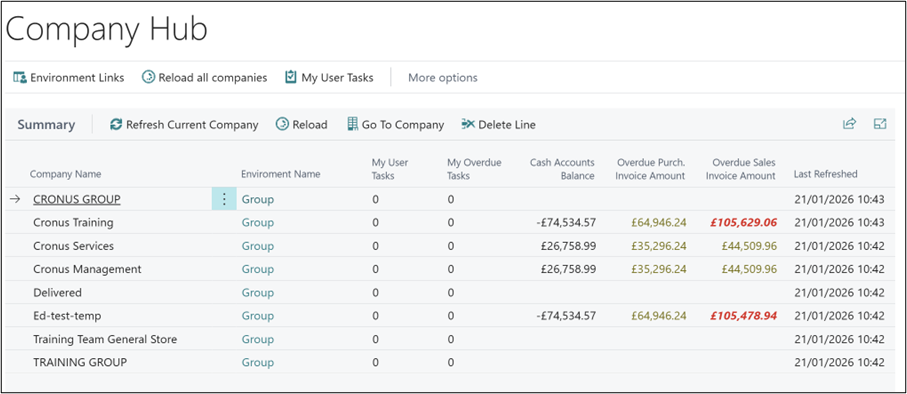
Navigating back to the Company Hub we can now see the balances for each of the companies, overdue Purchase and Sales Invoice Amounts as well as any User Tasks and Overdue Tasks. Should you wish to refresh the company data you can select the Reload all companies to refresh the data for all companies within the hub, or select the refresh current company option to refresh the data for only the company that has been highlighted.
Now that the Company Hub is set up, you can switch to the Company Hub profile by clicking the cog icon in the top right and selecting My Settings. This role centre will put the Company Hub screen on your home page, additionally it can be personalised to contain information on things such as Non-Applied Payments, Ongoing Purchase and Sales Documents as well as Outstanding Approvals and much more.
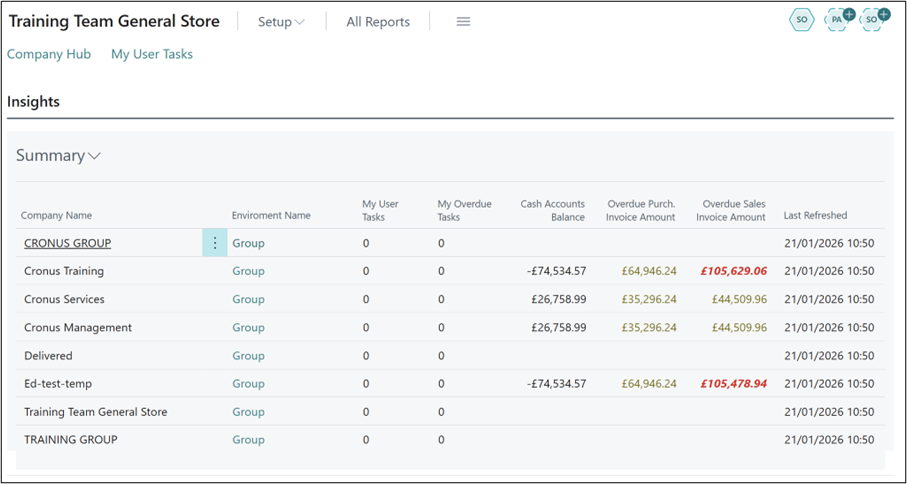
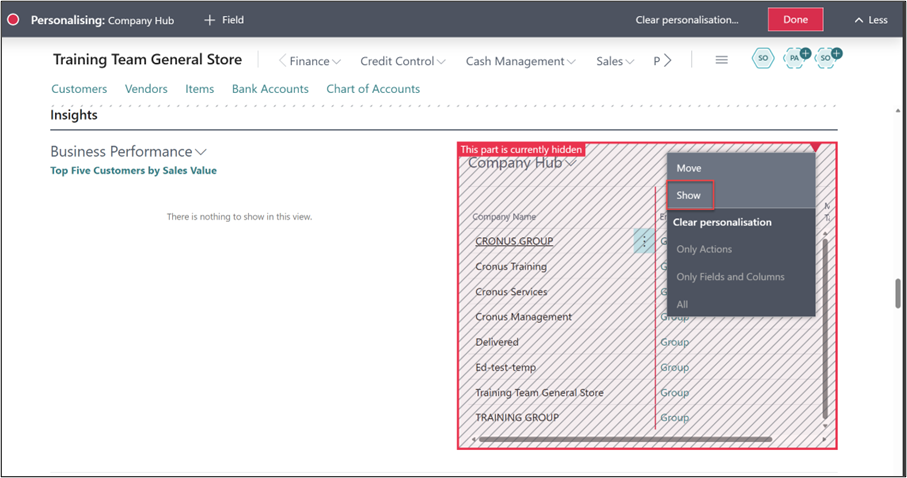
If you don’t wish to only see the Company Hub on your Role Centre it can also be added to a number of other profiles including the Business Manager via personalisation.
In short, the Company Hub is easy to set up and provides an overview of your organisations. While it lacks some features due to the limited attention it has received, it serves as a useful starting point. To add multiple environments, repeat the setup with each environment's link.
Watch out for more tips like this on our blog and if you have any questions for us about how we can help your company then please get in touch.