










The upcoming Microsoft Dynamics 365 Business Central release (version 28) will add AI to Business Central's search features. If you've ever struggled to find pages or reports because you couldn't recall their exact names, the new Advanced Tell Me will make searching much simpler.
Interested in giving it a try before the official launch? You can enable it early from the Feature Management page. Let's explore how to turn it on and what improvements it brings to your search experience.
Instead of digging through menus, the Advanced Tell Me feature uses AI to enable customers to simply type what they’re looking for and Business Central instantly shows relevant pages, actions, reports and help articles. It even highlights actions related to the page they’re already on, making it a much quicker and smoother way to find what you’re looking for.
Before you attempt to enable this feature, please ensure that you are in a Sandbox Environment. We recommend this as it allows you to test and ensure you’re happy with the functionality before introducing it into your Production Environment. If you have enabled it in a Production Environment, it cannot be turned off so it’s definitely best to trial it in your Sandbox first.
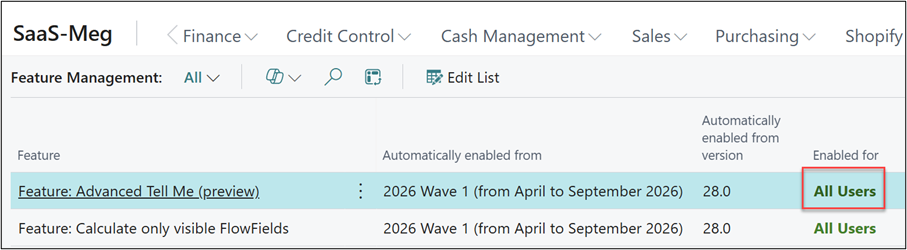
Now that we have the warnings out of the way, navigate to the Feature Management page and find the line for Feature: Advanced Tell Me (preview). Next, within the Enabled for field drop down and choose the option for All Users. You will be prompted to sign out and back into Business Central to enable the change.
With this feature now enabled, let’s check out how it works. Now upon accessing the search, either through the magnifying glass or by using the Alt+Q keyboard shortcut, you will notice an additional option for Advanced Preview at the top of the search.
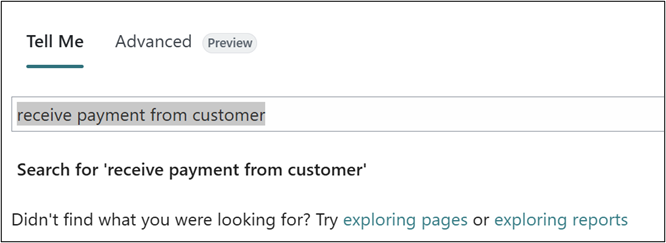
Let’s compare the differences between the two. In this example, I know that I need to receive payments from customers but I can’t quite remember the name of the page that I’m trying to access. Searching for ‘receive payment from customer’ within the standard Tell Me has returned no results. This is because Tell Me is looking for exact text matches.
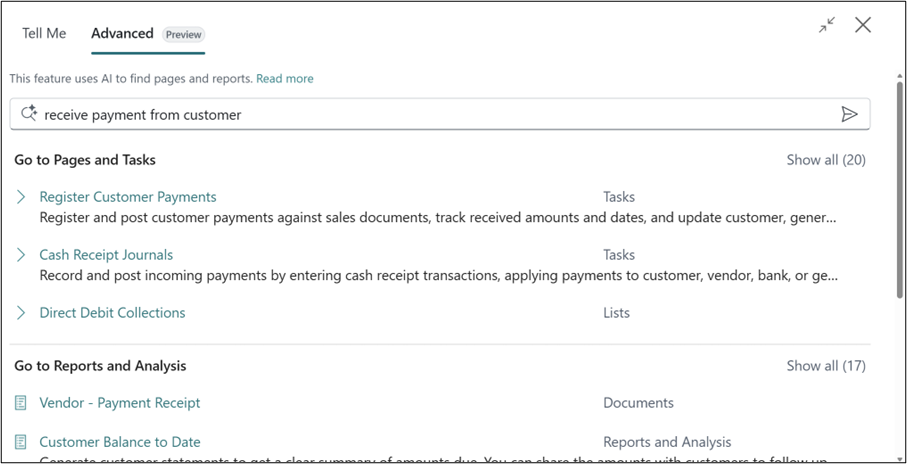
When you select the Advanced option, the text entered in the Tell Me search is copied over. Please note that this option does not perform searches as you type -after entering your search criteria, you must click the arrow or hit enter within the line to continue. Unlike the standard Tell Me feature, the Advanced search generates multiple results, as it relies on semantic meaning instead of exact text matches and evaluates various page properties along with additional search terms to deliver an ordered list of relevant outcomes.
Watch out for more tips like this on our blog page and if you have any questions for us about how we can help your company please get in touch.