








The drop shipment process within Microsoft Dynamics 365 Business Central has been an integral part of many users’ sales and purchases processes but has remained largely unchanged and, dare I say, somewhat clunky! Fortunately, in the version 28 release of Business Central, three changes have been implemented that will make the process easier than ever before. Let’s take a look…
To begin, make sure that both the Purchasing Code on the Sales Line has been set to Drop Ship and the Drop Shipment flag has been ticked.
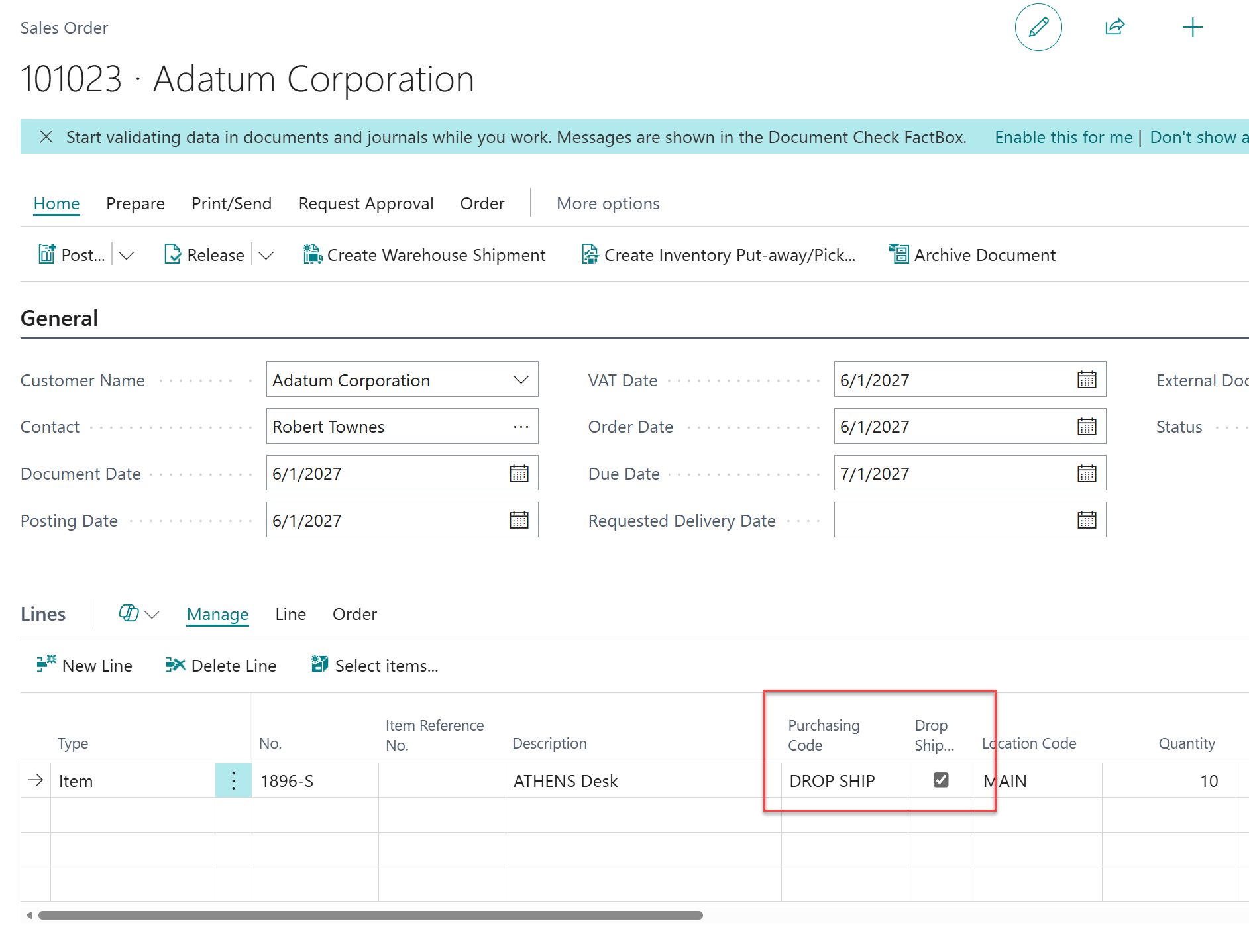
(Please note that these fields are not immediately visible on the Sales and Purchase Lines and must be added using personalisation.)
Now, to create the Purchase Order directly from the Sales Order, select the following from the menu: More Options > Actions > Functions > Create Purchase Document > Create Purchase Orders.
This will then open the Create Purchase Orders page, which has been an option for a while, but now a new field has been added to show that this is a Drop Shipment order. Upon selecting OK, a new Purchase Order will be created that has been linked back to the Sales Order.
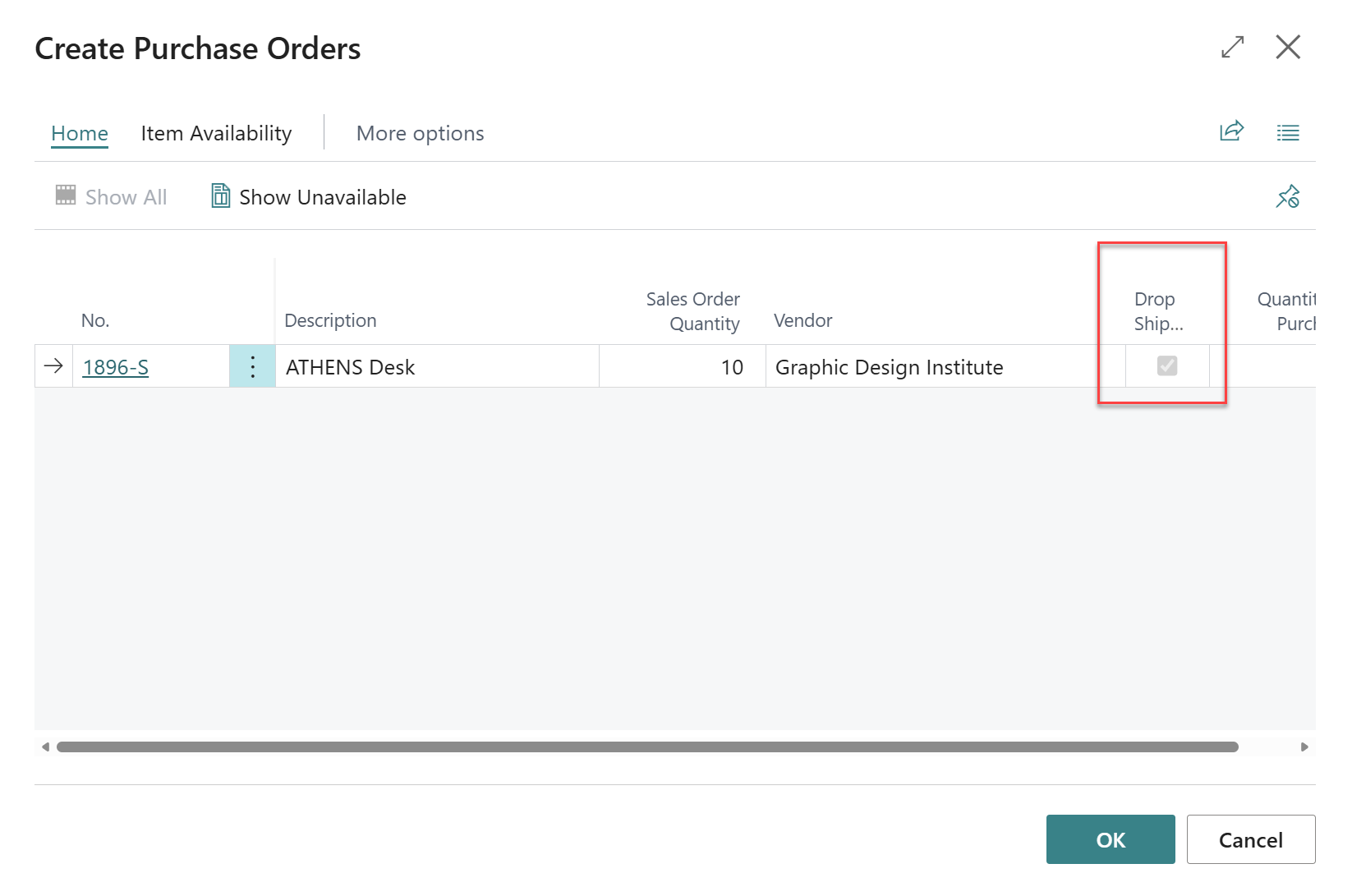
The newly created Purchase Order will include the customer’s shipping address from the Sales Order.
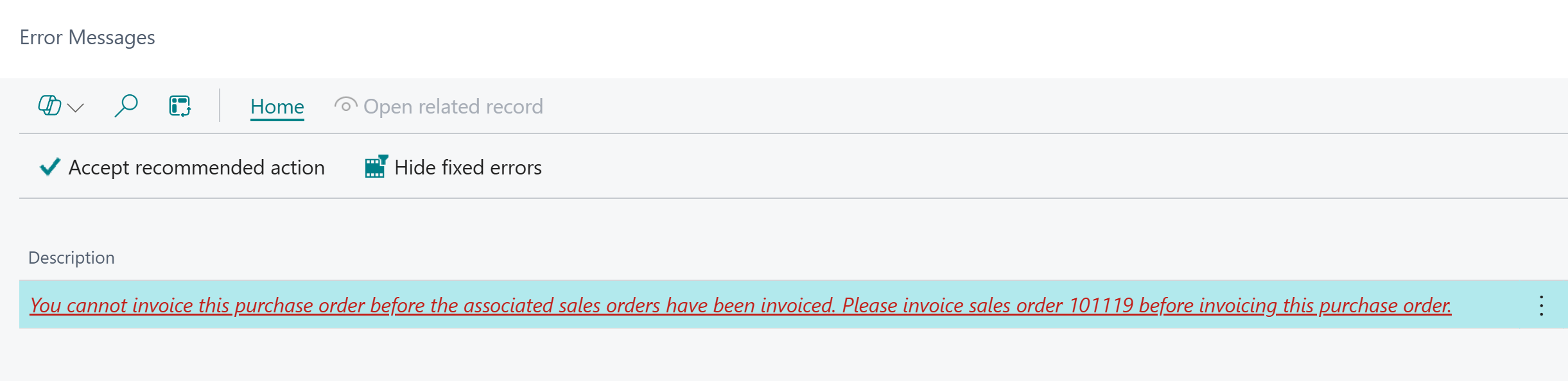
Previously, if you attempted to invoice the Purchase Order before invoicing the Sales Order you would encounter the following error. This restriction is now removed, making the process that bit easier!
In previous versions of Business Central it wasn’t possible to use the ‘Undo Shipment’ option, making it incredibly difficult to correct mistakes and forcing users down the path of creating credit memos.
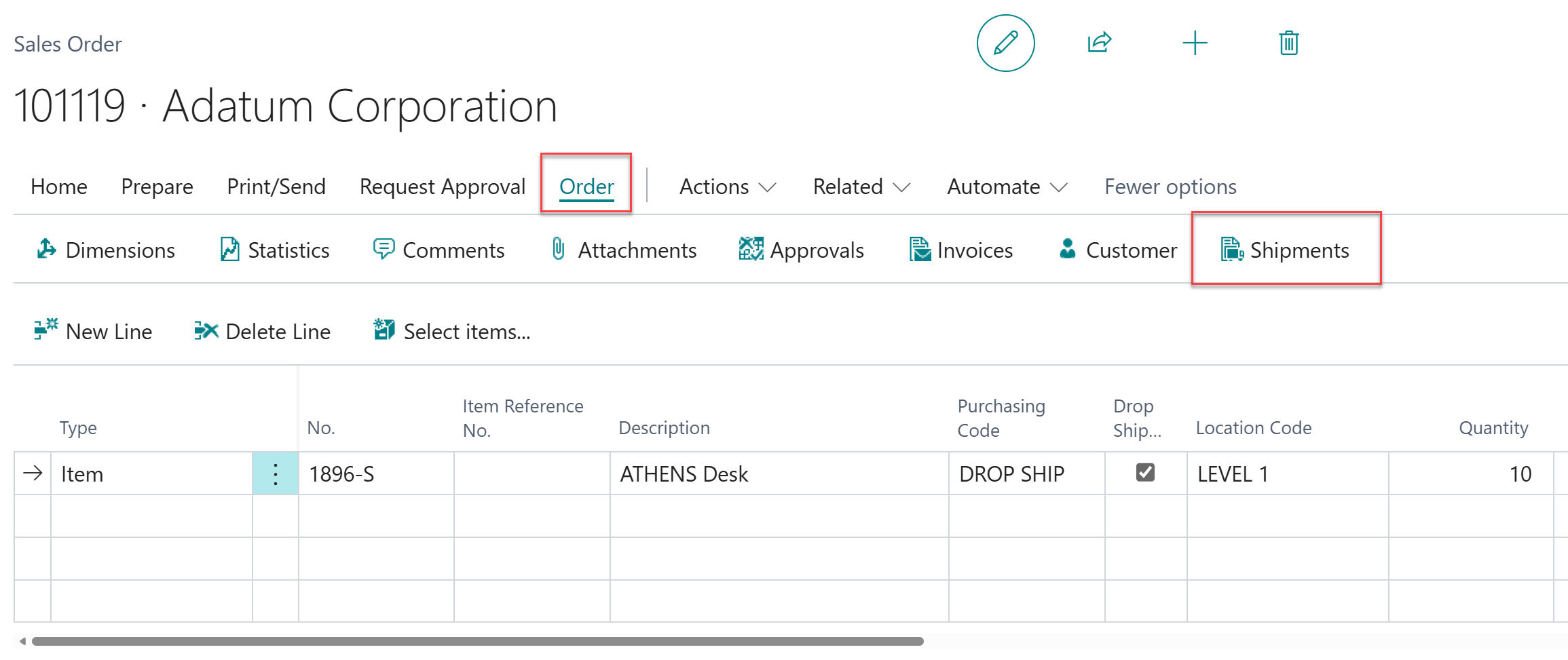
If you are unfamiliar with the ‘Undo Shipment’ process, first navigate to the Posted Sales Shipment which can be found by selecting Order > Shipments from the Sales Order menu options.
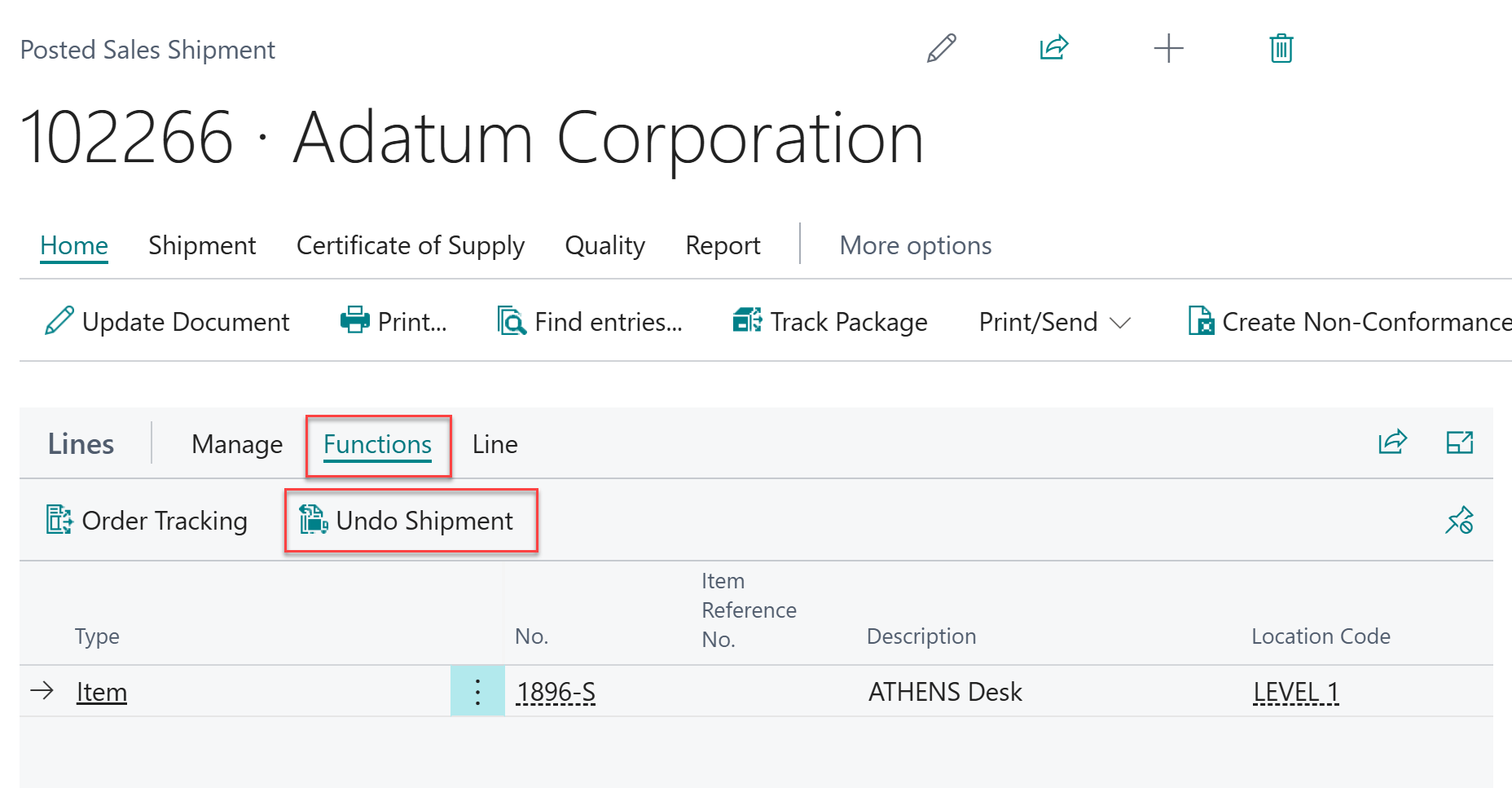
Then, from the Posted Sales Shipment, select Functions > Undo Shipment from the Lines FastTab. Following this process will not only undo the shipment, but also the quantity that was received on the linked Purchase Order.
For Business Central training, or a conversation about moving your Business Central support to Tecman, drop us your details today.