











In Microsoft Dynamics 365 Business Central, credit limits can be set and managed for individual customers. When a customer exceeds their agreed credit limit, users receive a warning, helping teams identify and address potential debt issues more quickly. However, this warning doesn’t automatically stop orders from being processed. Additional workflows or third-party solutions are needed if you want to introduce this control.
Did you know, you can configure credit warnings in Sales & Receivables Setup and choose from the following options:
These notifications are typically triggered when a sales order is entered. They appear at the top of the screen, with the message determined by the option selected in Sales & Receivables Setup.
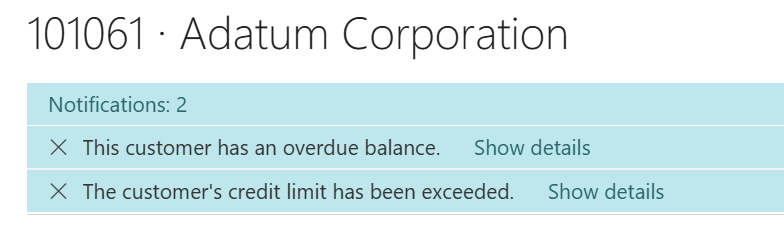
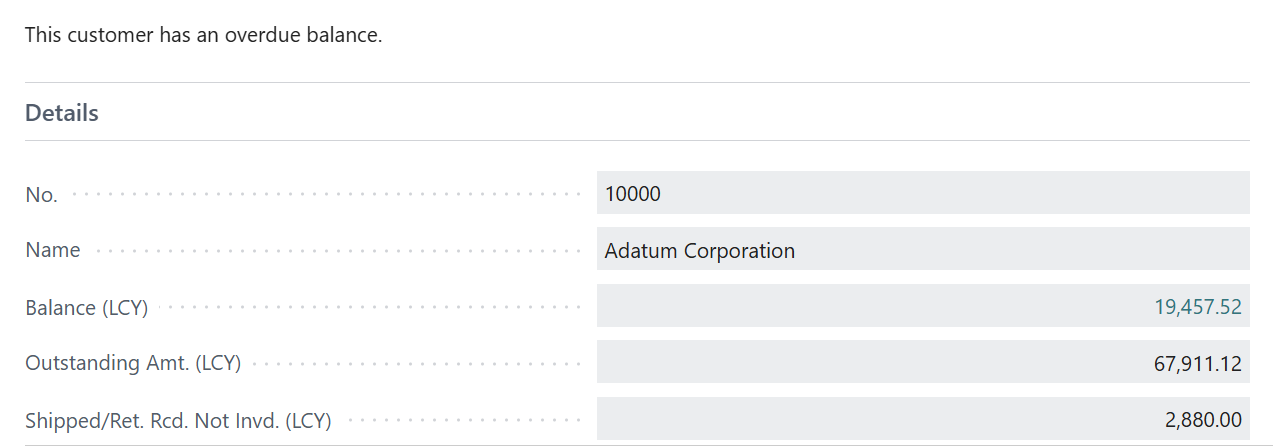
Select Show details to view more information about the warning.
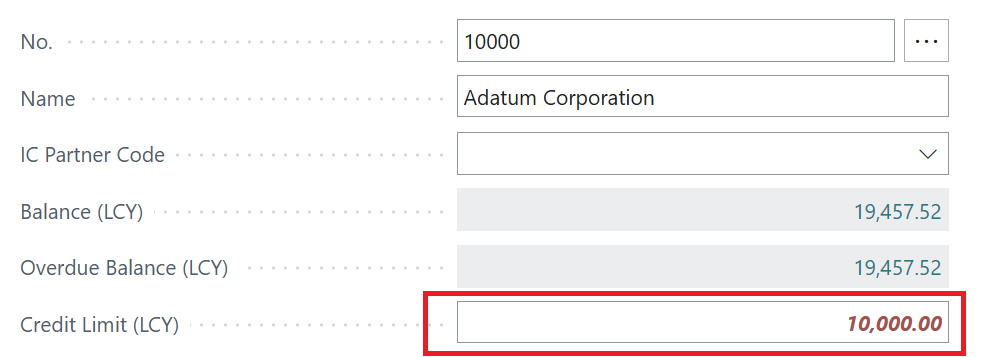
On the customer card, the credit limit is shown in red when the customer has exceeded it. This allows users to identify the issue at a glance.
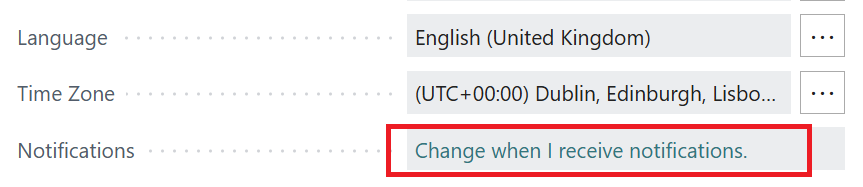
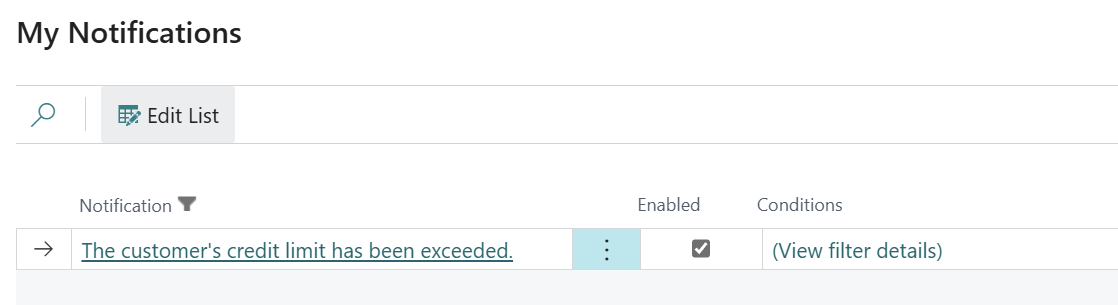
Please note: Users can disable notifications in My Settings or apply filters using Conditions.
You can use a standard Business Central workflow to control changes to credit limit amounts on the customer card. The workflow can create an approval request when the field changes and retain the existing value while approval is pending. The new value is only applied after the final approval request has been approved.
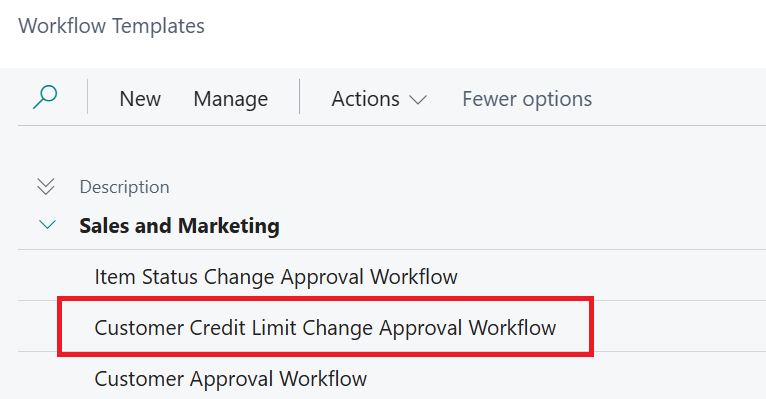
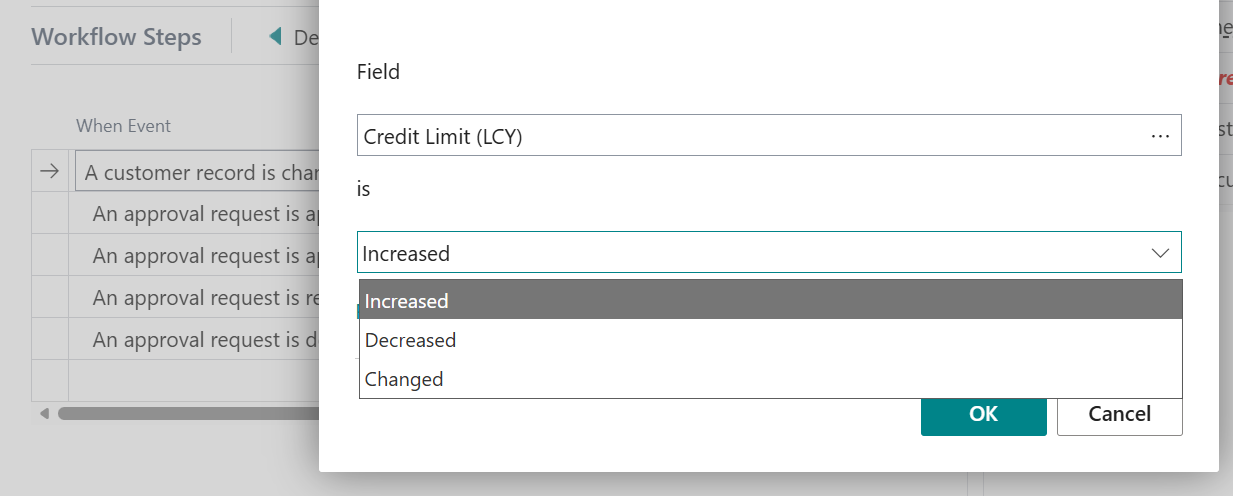
Enable the workflow from the template shown above. You can then set a condition that triggers the workflow when the Credit Limit (LCY) field changes.
Add the response ‘Revert the value of the Credit Limit (LCY) field on the record and save the change’.
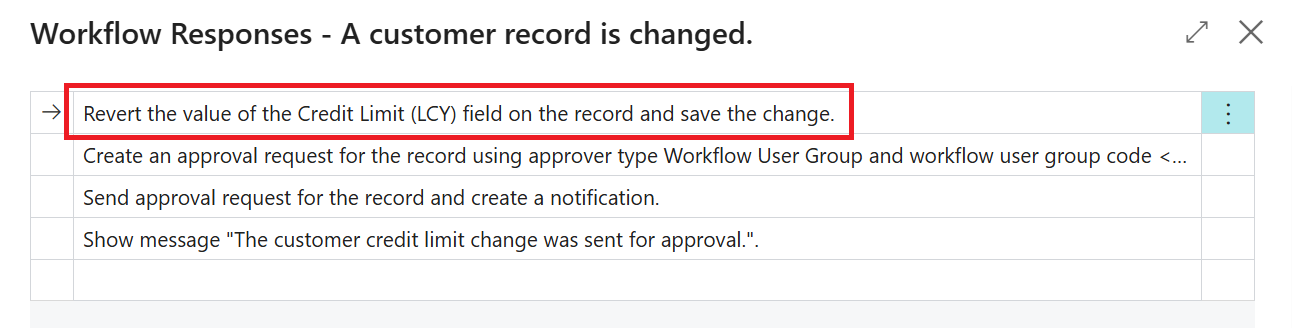
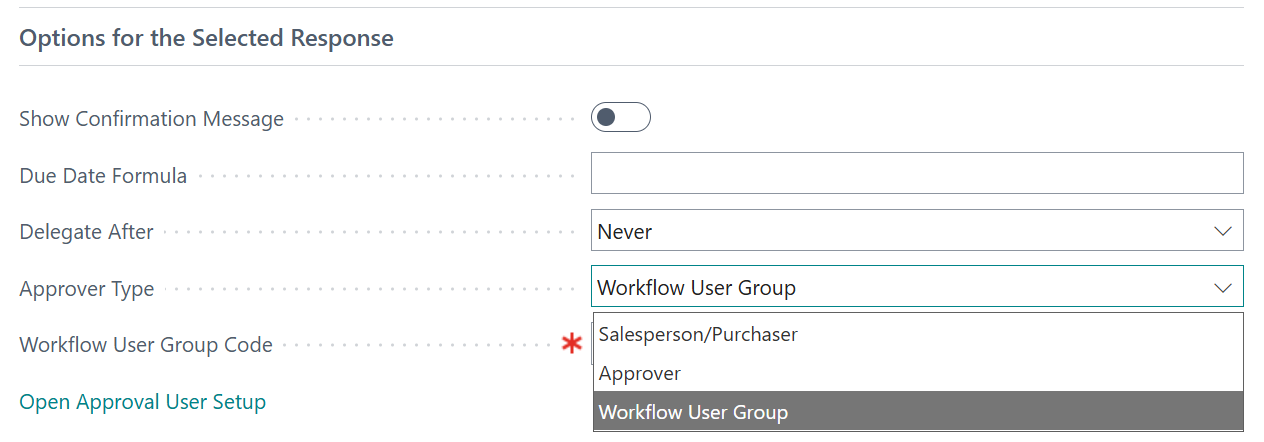
You can also define the Approver Type for the relevant workflow response.
These workflows are not restricted to a single field. You can create workflows for other fields that require approval, helping users control the information captured and maintain data integrity.
For Business Central training, or a conversation about moving your Business Central support to Tecman, drop us your details today.