If you've found Analysis Mode in Microsoft Dynamics 365 Business Central challenging, the new Copilot Analyse List feature is here to help. Here’s a simple, step-by-step breakdown on how to use Copilot Analyse List in Business Central.
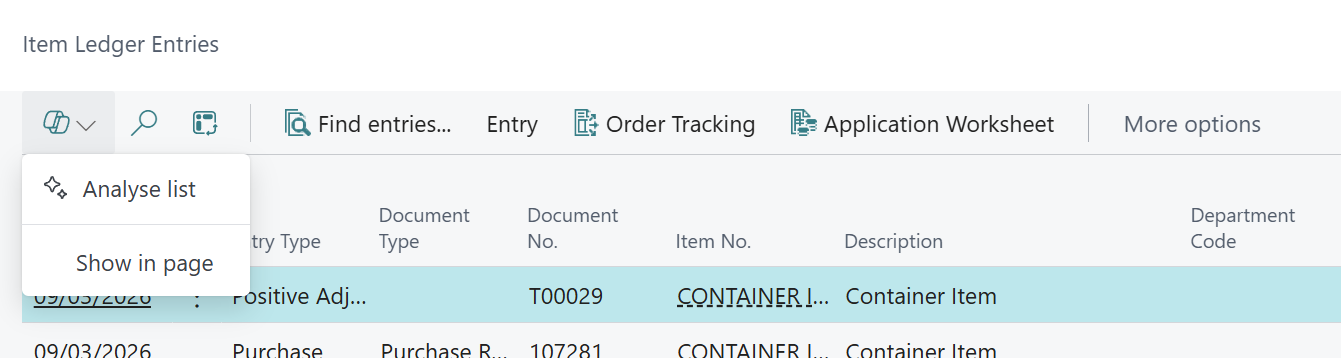
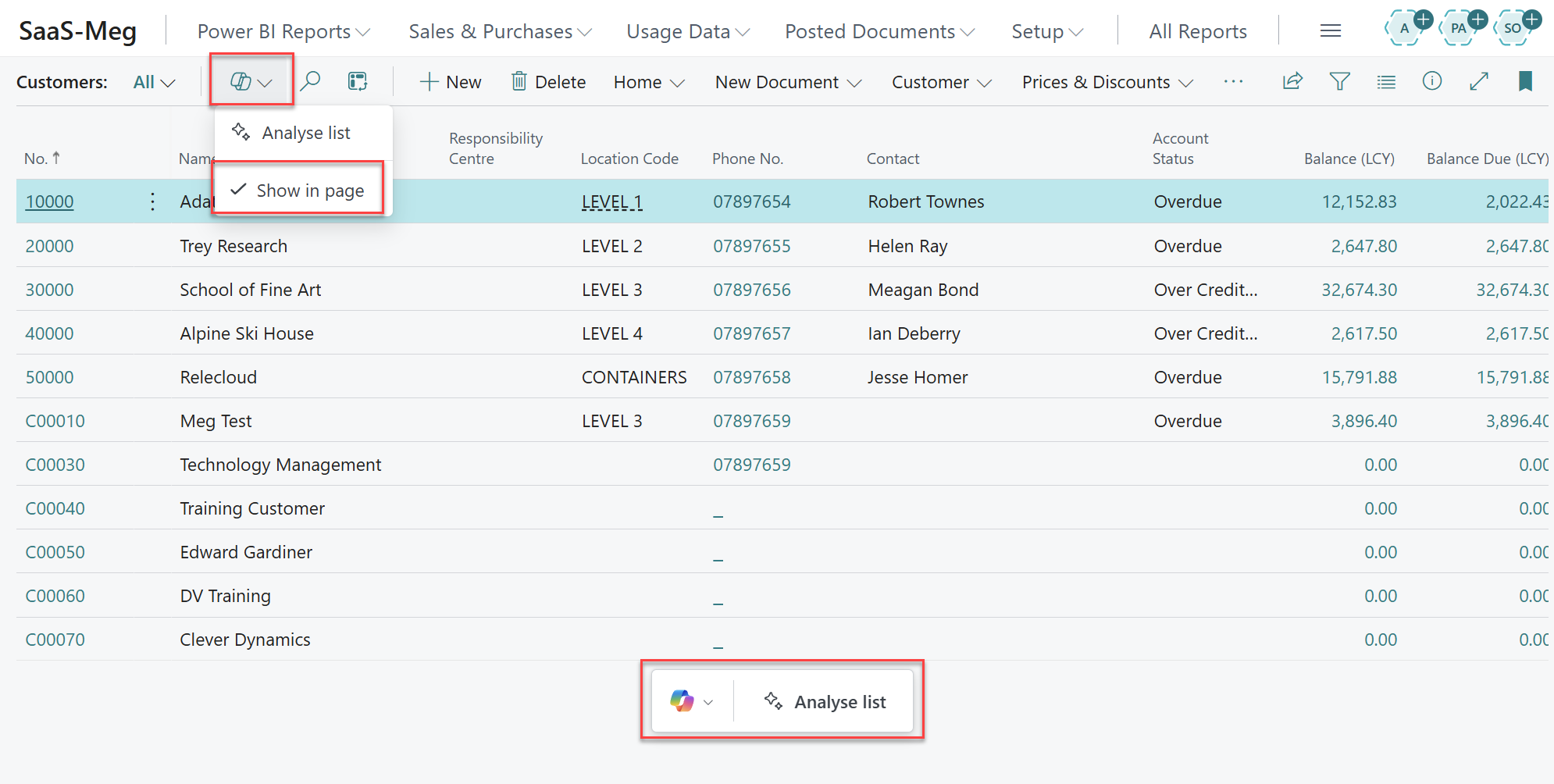
To begin, navigate to the list you wish to utilise the Copilot Analysis on, select the Copilot icon and then Analyse List.
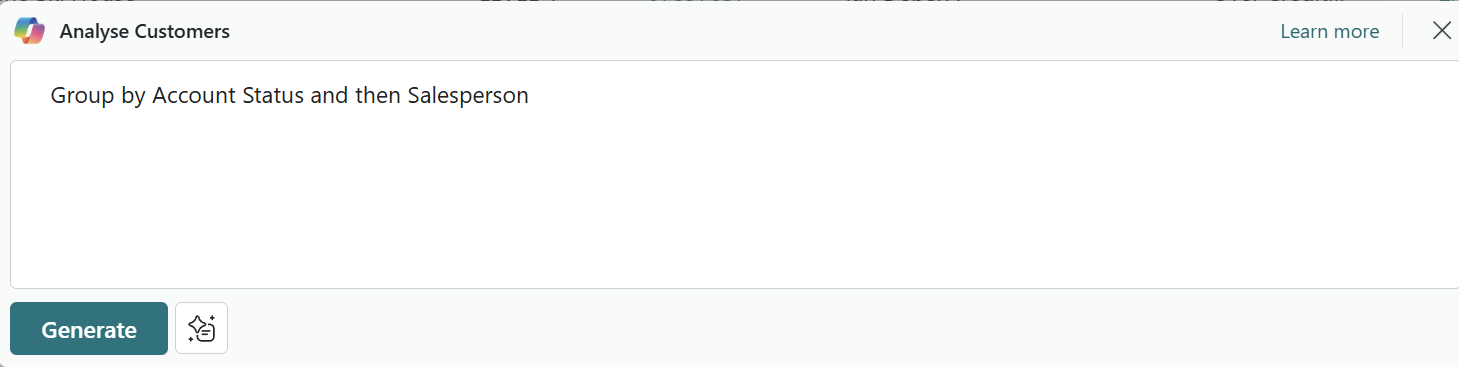
2. Next, enter how you would like the report to be created. In this first example, we’re grouping the customer’s list by the Account Status column and then by the Salesperson. Once the text is entered, select Generate.
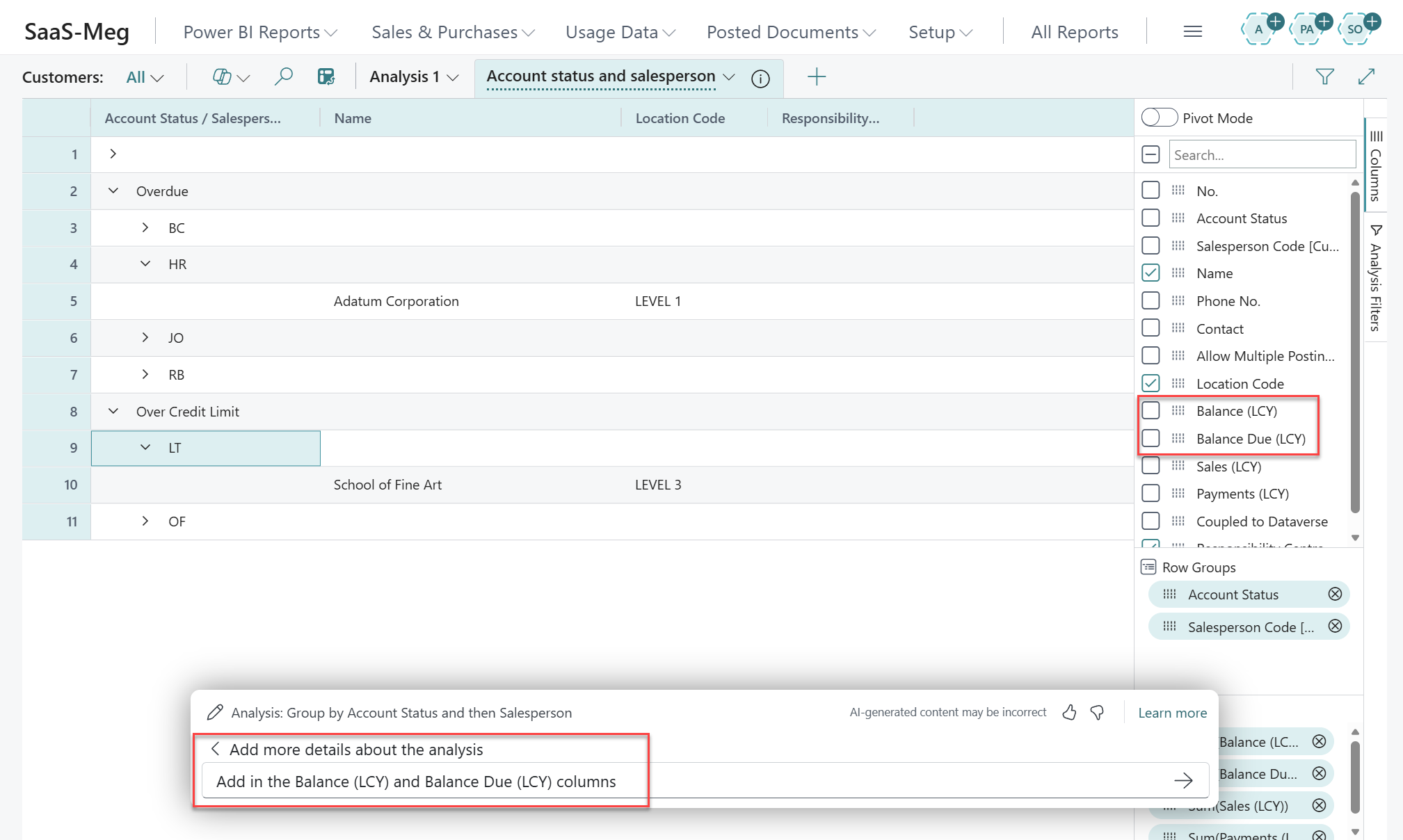
An Analysis View has now been created following the instructions given to Copilot. However, it has also removed two columns we’re interested in: the Balance (LCY) and Balance Due (LCY) fields.
3. There are two options to add these columns in. The first would be to select the check boxes for the columns on the right-hand side – or you can ask Copilot to add the columns for you. This is especially when struggling to find the columns you’d like to add. After entering the text, either select the Enter key or the arrow on the Copilot box.
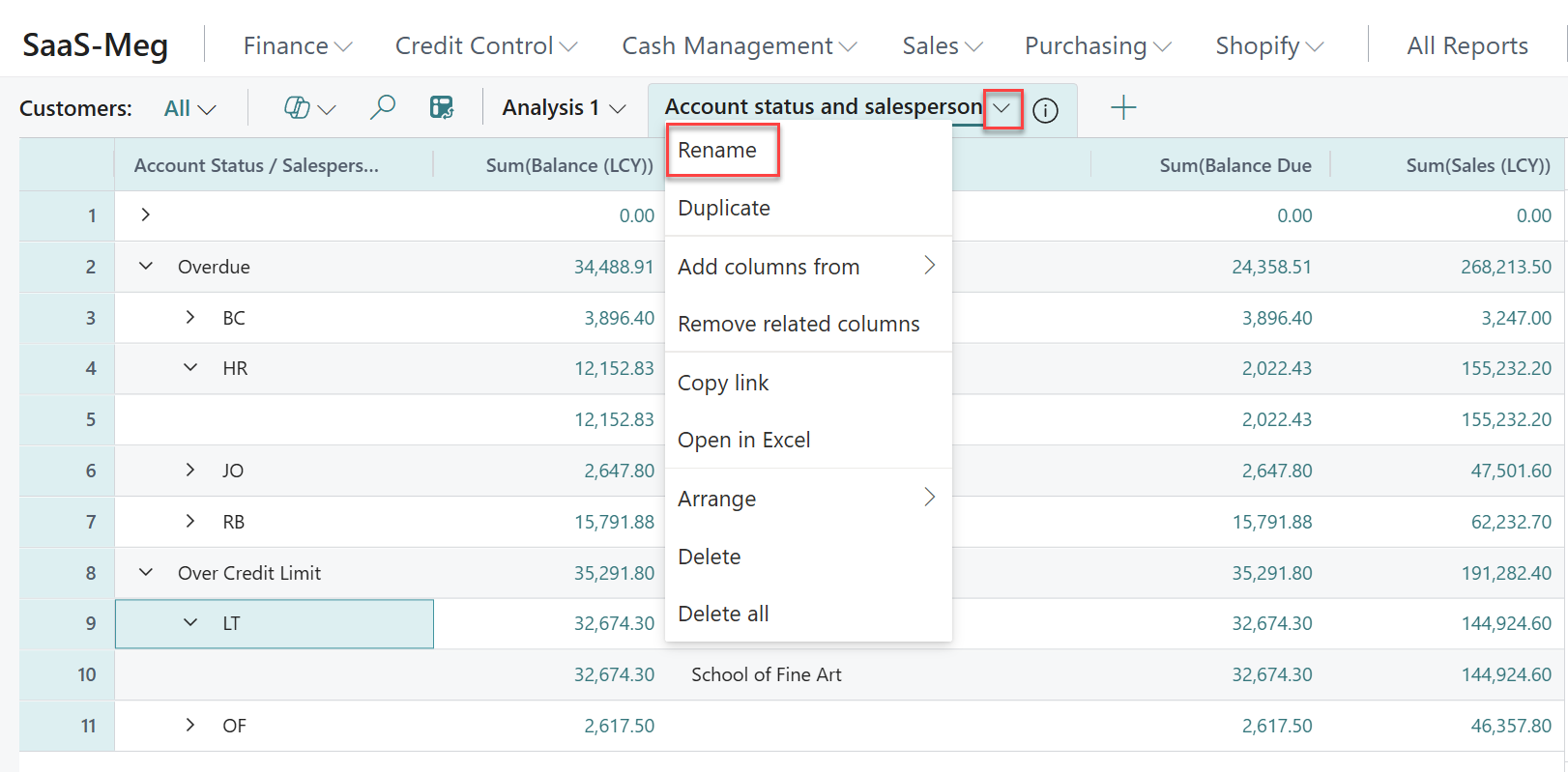
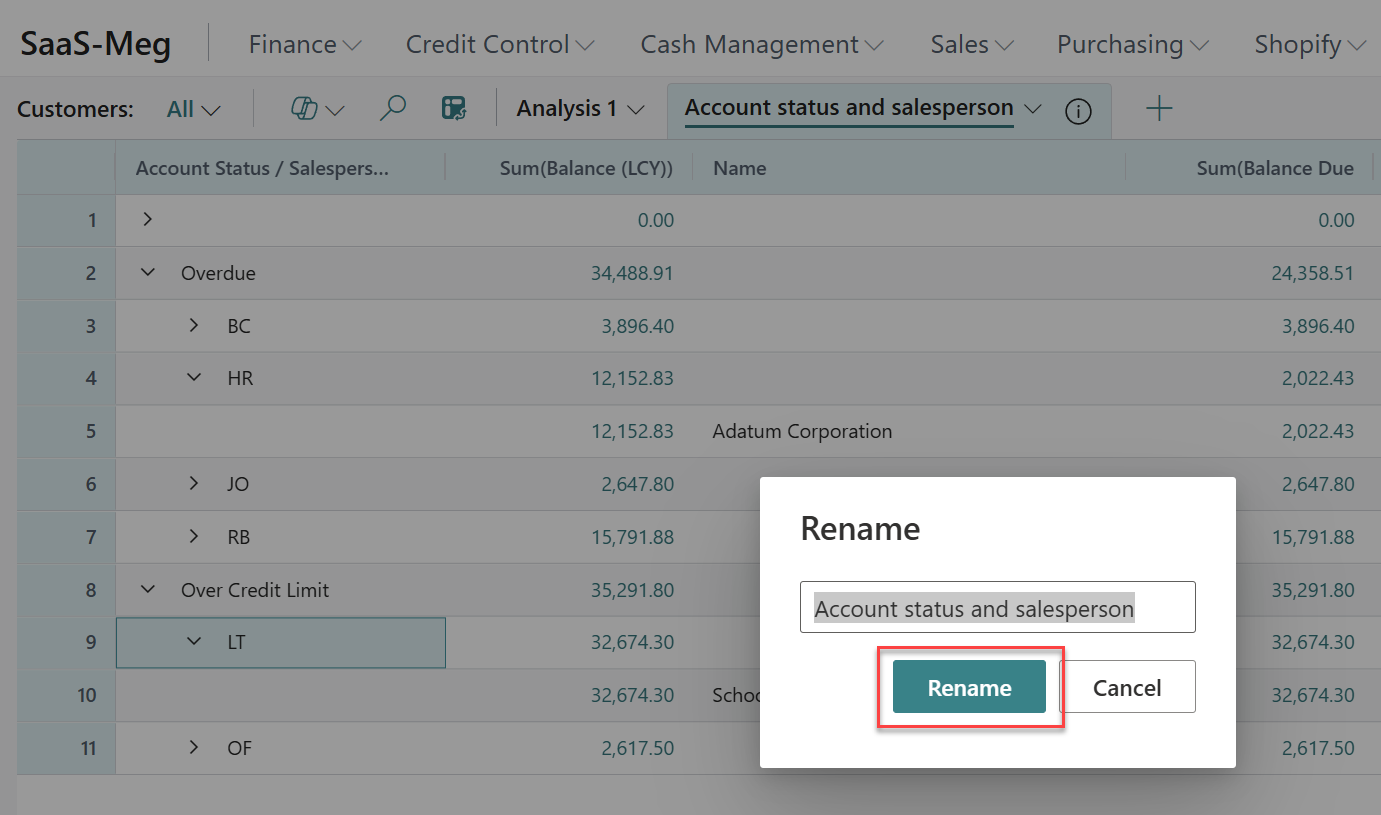
4. Once the Analysis View has been completed, you can save the view to revisit it later by selecting the drop down next to the name and selecting Rename.
5. On the pop-up select Rename and this will save the view to your profile.
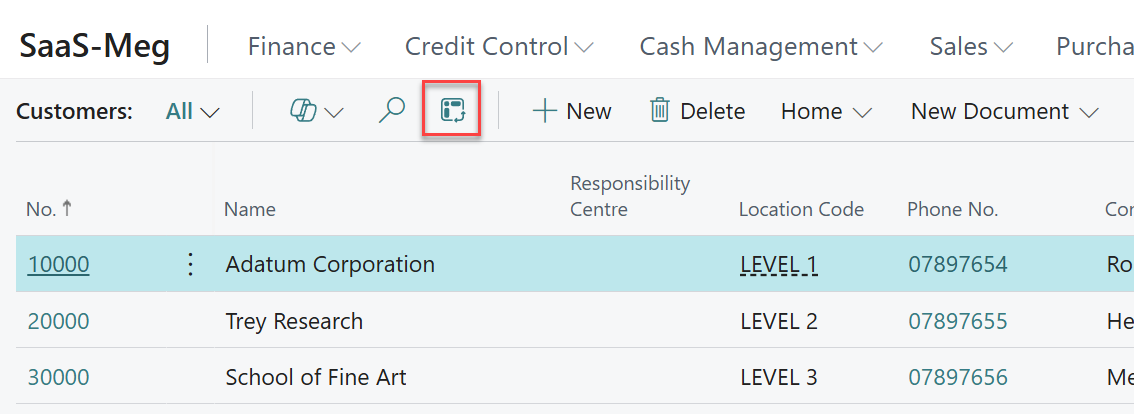
6. To get back to the Analysis View at any time simply select the Analysis View icon from the list page.
7. If you would like the Analyse List option to always be visible, simply select the Copilot icon on the list page and then select Show in Page. This will ensure that the Analyse List option is always visible on the page.