










In some countries and regions, businesses may need to withhold tax on certain services or purchases from suppliers before paying it to the relevant government authority.
Microsoft Dynamics 365 Business Central v28 can calculate withholding tax when a vendor invoice is posted or make the payment, depending on your setup. The tax is deducted from the payment, reducing the amount paid to the vendor.
How does it work?
Start by enabling withholding tax in General Ledger Setup. You’ll then need to complete several additional setup areas before Business Central can calculate and post the tax.
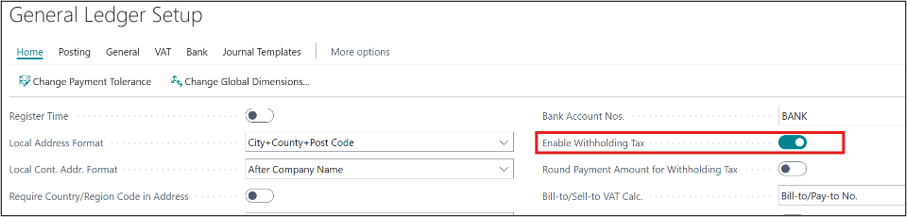
Please Note: If you’re working in an upgraded environment, you’ll need to install the app through Extension Management.
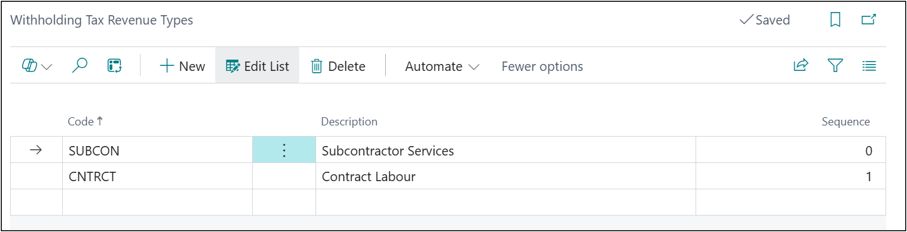
Multiple Tax Revenue Types can be created with the ability to sequence these and with the Tax Bus. Posting Groups the details can then be attached to the vendor.
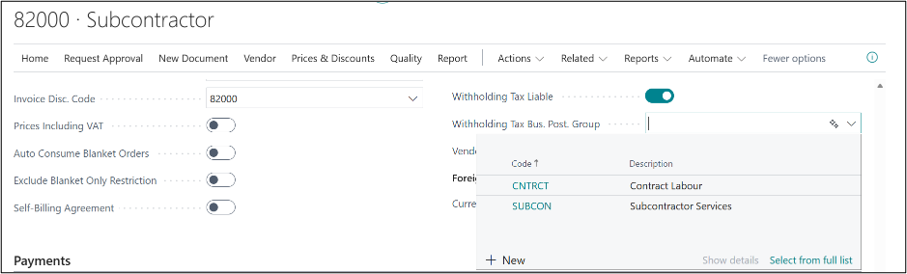
N.B. The posting group only becomes active when the withholding tax liable is switched on. However, the same control is not available on the item or G/L card. Here the Bus. Posting Group can be set without the activation.

The Withholding tax posting setup has the same structure as other posting setups where the posting G/L accounts are determined by the combination of Withholding Tax Bus. Post Group and Withholding Tax Prod. Post. Group.
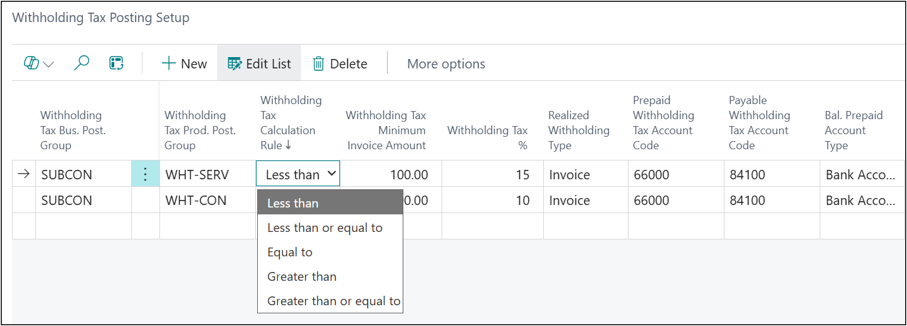
Use the Withholding Tax Calculation Rule with the Withholding Tax Minimum Invoice Amount to control which transactions have withholding tax deducted. Select the appropriate rule from the list shown above.
The Realised Withholding Type allows you to choose whether the withholding is realised when the invoice is posted, when the payment is posted, or at the earliest of the two.
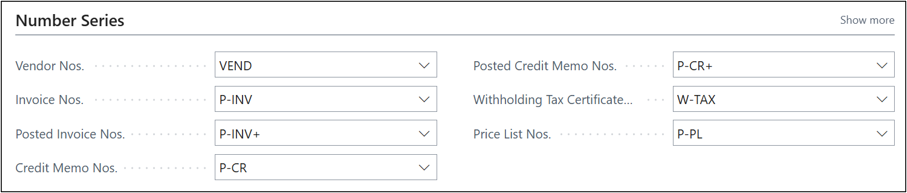
Once the Withholding Tax Certificate Nos. are setup within the Purchases & Payables Setup then Business Central will apply the Withholding Tax automatically when working with purchase documents.
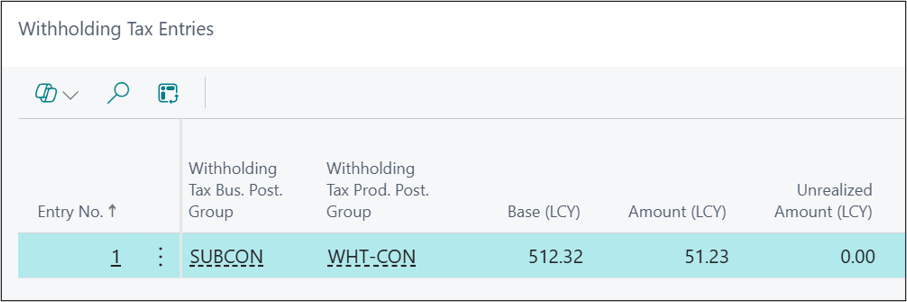
Let’s take a look at the process. As the invoice is above the value set in the calculation rule then Posting Preview confirms that a Withholding Tax Entry will be created using the applicable line amounts.
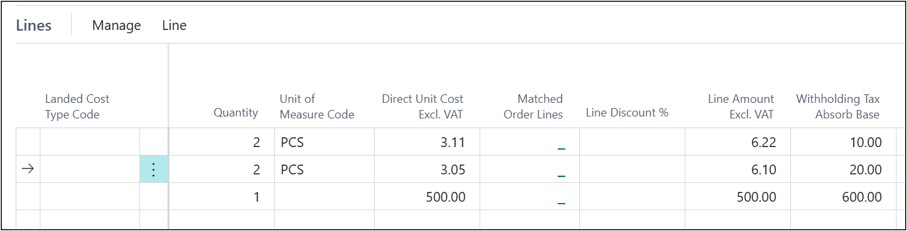
If you need to use a different calculation amount, use the Withholding Tax Absorb Base field on the Purchase Invoice Line.
The same logic applies to Purchase Credit Memos and once they are posted, the relevant general ledger accounts are updated.
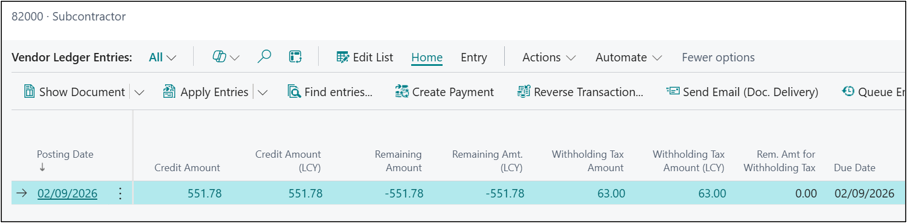
Vendor Ledger Entries are updated with the new fields.
Running the payment journal will suggest the net amount, i.e. excluding the tax.

Similarly to the Calc. And Post VAT Settlement there is a Calc. and Post WHT Settlement routine to allow you to define the settlement account, this is defined as either a G/L account or a vendor account, for the time period selected.
Current limitations are that it only works within the purchase process and is part of the global app, i.e. no localisations. Albeit that manual calculations are eliminated with vendor payments are automatically reduced at the same time offering flexible setup for different tax scenarios.
For Business Central training, or a conversation about moving your Business Central support to Tecman, drop us your details today.