










For Microsoft Dynamics 365 Business Central users, customer payments keep your accounts receivable accurate and up to date. Payments recorded against open sales invoices ensure your ledger reflects the money received from customers.
Business Central gives you several flexible ways to record and apply payments. Choosing the right method helps your finance team work with greater speed and confidence. Let’s look at your options…
Manual entry
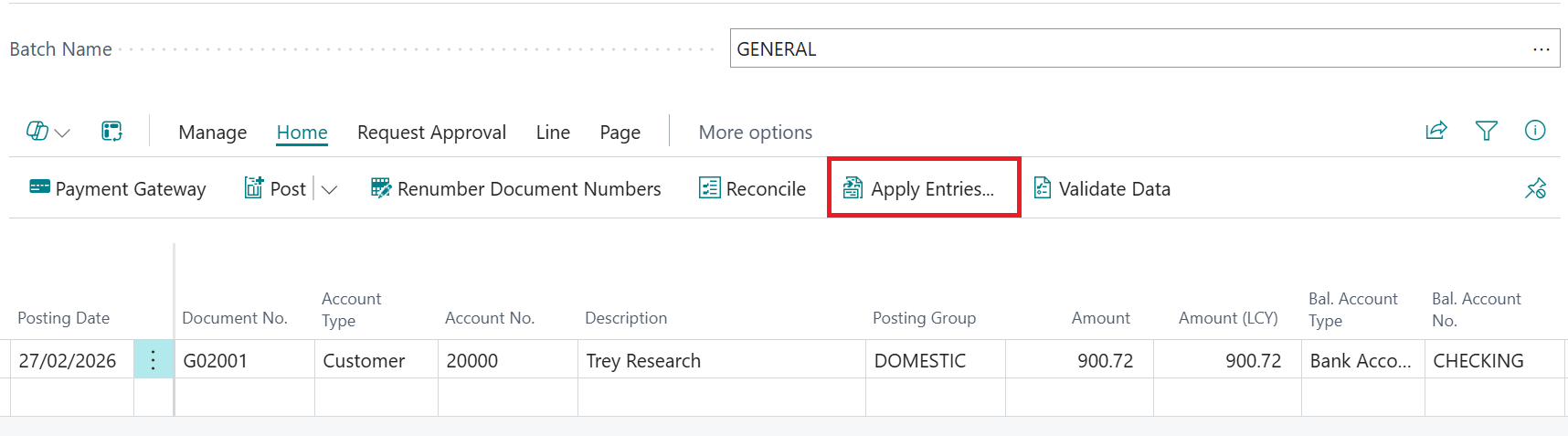
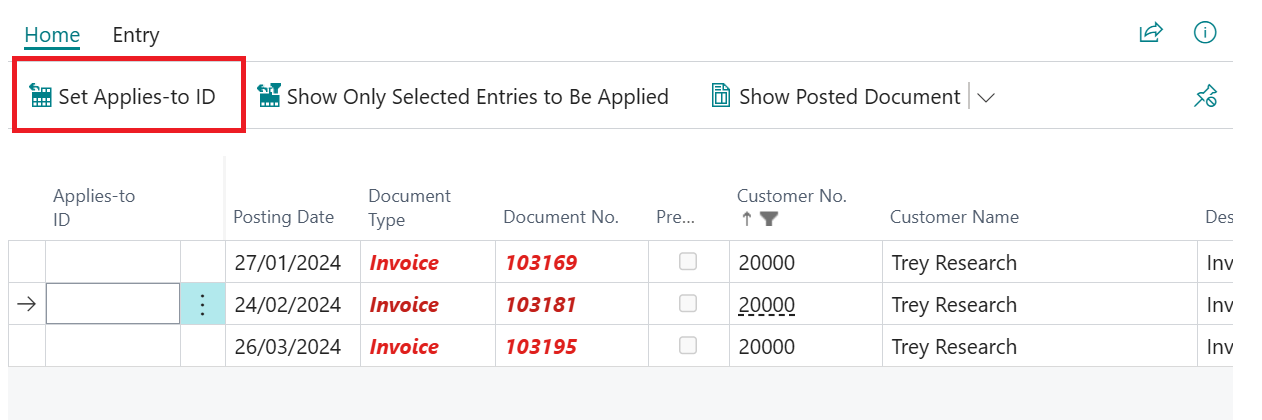
You can enter payments manually using the cash receipt journal by adding the customer details and payment amount, then selecting Apply Entries to choose the invoices you want to close before posting.
This method is simple and transparent but does rely on users matching entries themselves.
To help streamline this process, you can set the Application Method for a customer to Apply to Oldest. This means Business Central will automatically apply the payment to the oldest open invoices first.
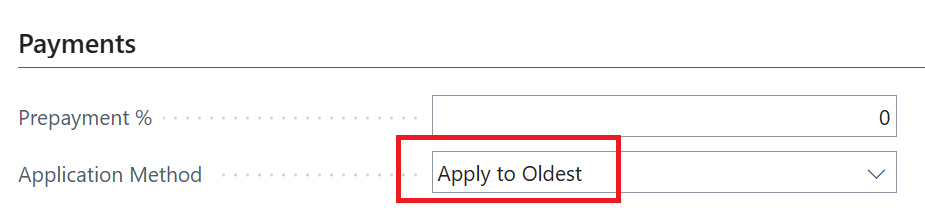
This works well if customers usually pay their oldest invoices, although it does depend on accurate data. If the wrong invoice is already marked with an Applies to ID, the automatic matching may not behave as expected.
Using the below customer ledger entries the Applies-to ID has already been set, meaning that the Apply to Oldest will skip and move unto the next entry leaving the user to fix the issue to ensure the invoice will be applied next time.

Payment Reconciliation Journal
For higher volumes of payments or regular bank statement matching, the Payment Reconciliation Journal offers a faster and more automated option.
Once you import the bank file, Business Central suggests matches based on the payment application rules you have set.
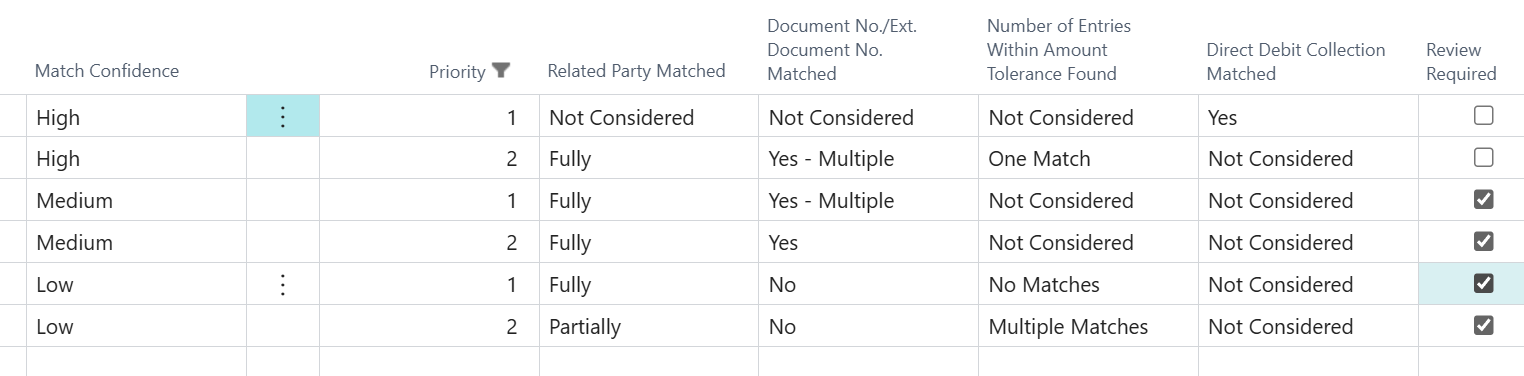
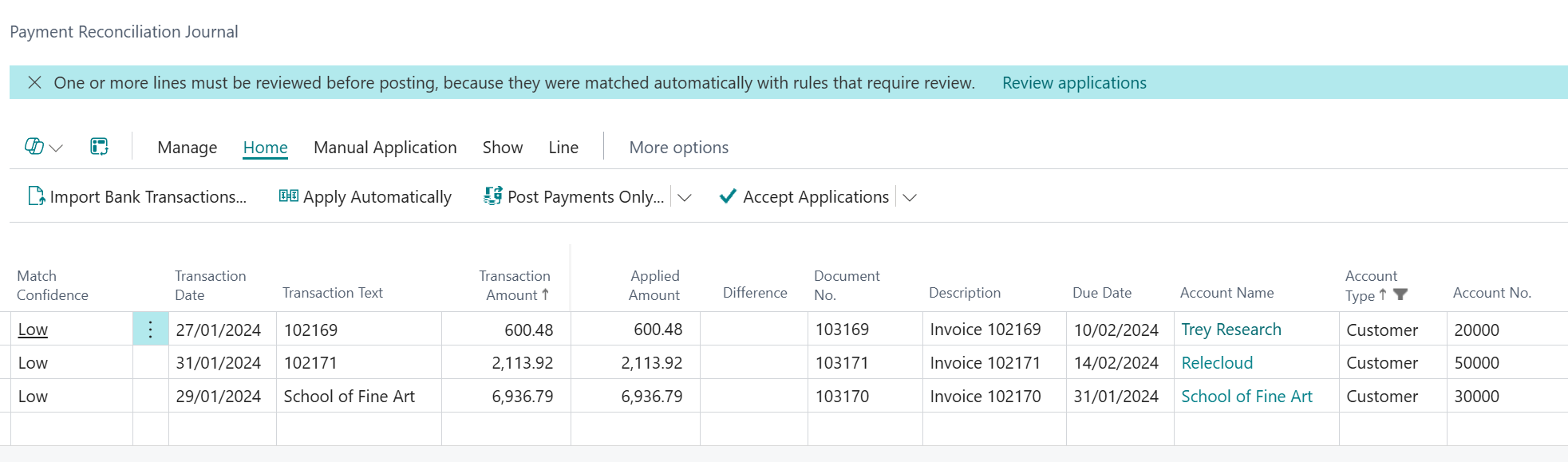
It’s important to check each line, especially those with Medium or Low match confidence, and update the match (if needed) before posting. If you only post the payments, you may still need to apply invoices manually unless you use Apply to Oldest.
Map text on payments and specifying debit, credit and balancing accounts means payments with certain descriptions can be posted to the correct accounts automatically.
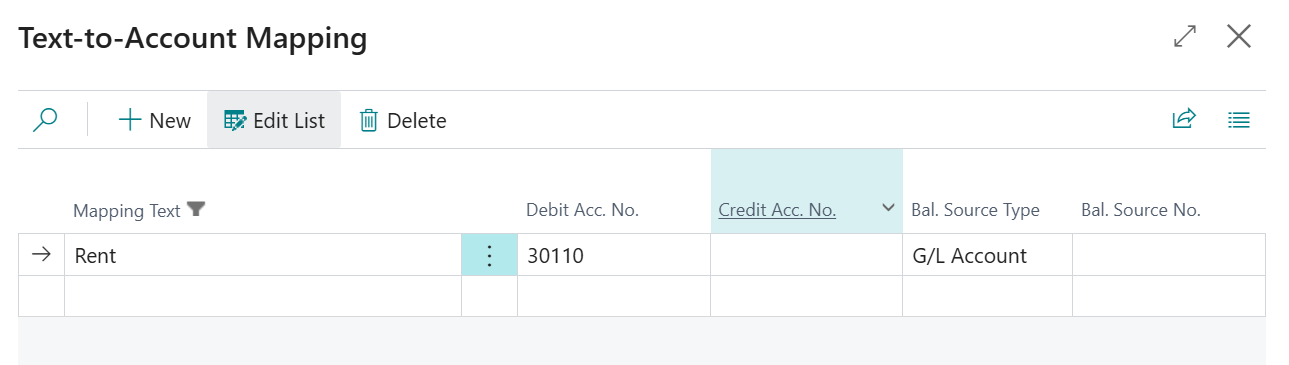
These tools offer speed and convenience, although automatic matching depends on the quality of the data. Incorrect amounts or vague references may still require manual intervention.
Register Customer Payments
This page gives you a focused way to enter and allocate payments directly from the customer card. You can apply full or partial amounts, and Business Central will create and allocate the payment once posted.
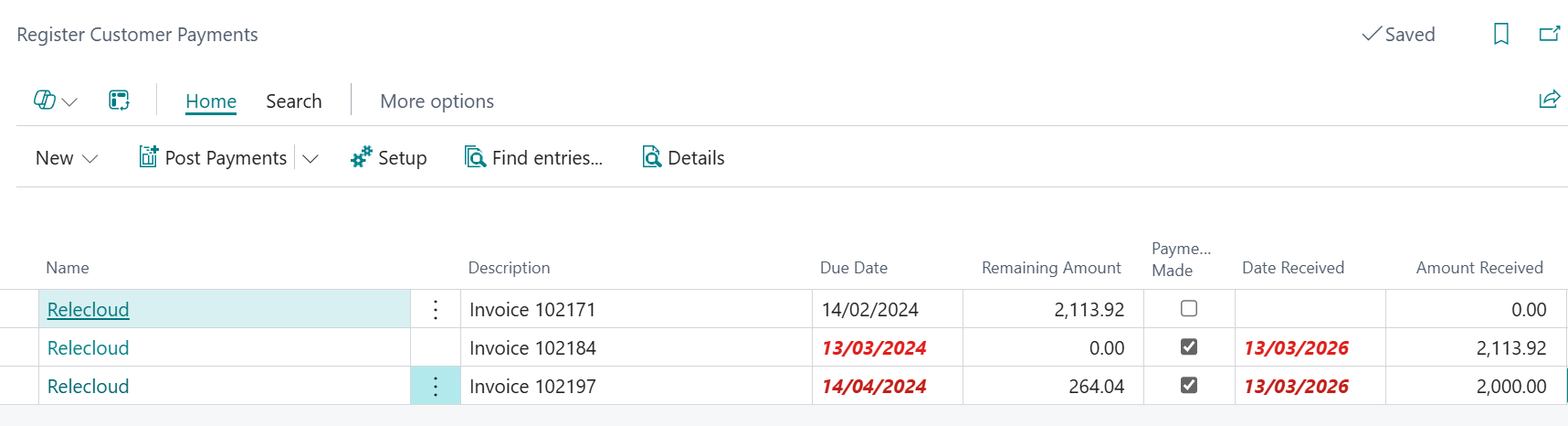
Opening this page from the main menu will show all customers, which can feel less intuitive if you only work with a smaller set of accounts.
This option works well for customers that make simple, one invoice payments without deductions. It’s less suitable when you need to apply a single payment to multiple invoices or when you need to handle write-offs, discounts or payment differences that post to specific G/L accounts.
So, there we have it – three options and the flexibility to choose a process that fits your workload and your customers' payment behaviours. For Business Central training, or a conversation about moving your Business Central support to Tecman, drop us your details today.