











Having trouble finding key details like unallocated payments and credits in your Microsoft Dynamics 365 Business Central sales ledger? Here, we explore different filters that can be applied to the Customer Ledger Entries which allow you to analyse the entries much more effectively.
To begin, navigate to the Customer Ledger Entries list, and make sure the filter icon has been selected to open the filter pane on the left-hand side.
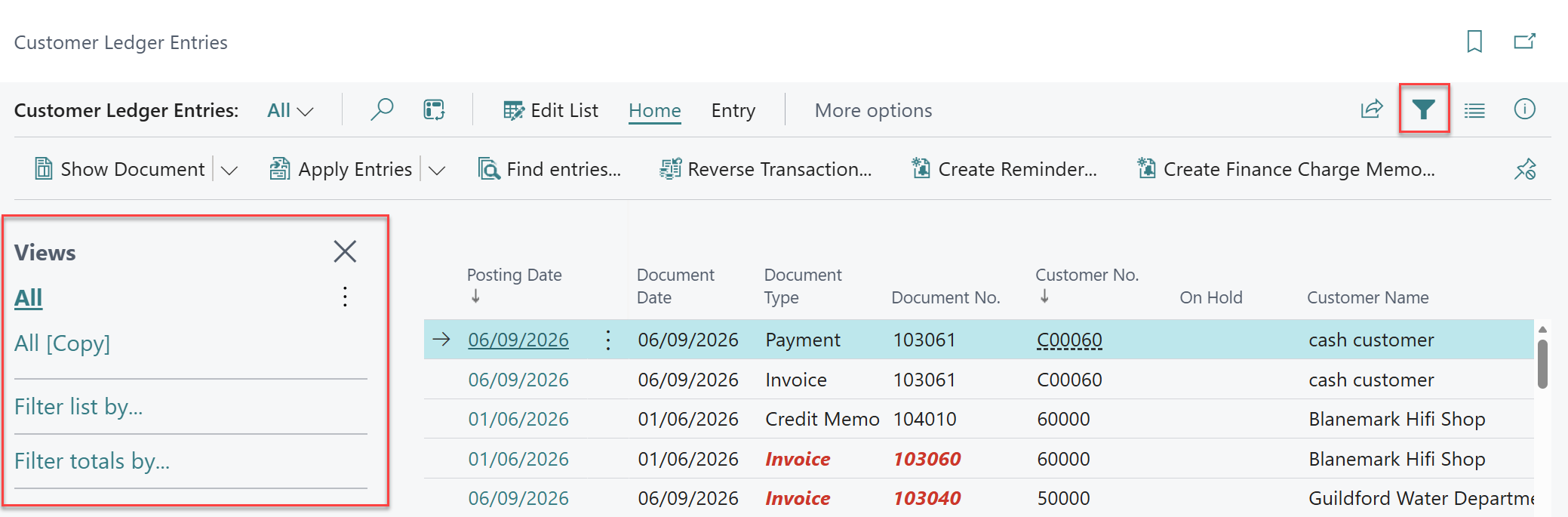
Let's start by learning how to use a filter to show only entries that are marked as On Hold. Once you've chosen the + Filter… option, locate the ‘On Hold’ field in the available fields list. Enter <>’’ in the filter field, this will filter Customer Ledger Entries so that only those with a value in the On Hold field are displayed, since this filter effectively means "not equal to blank."
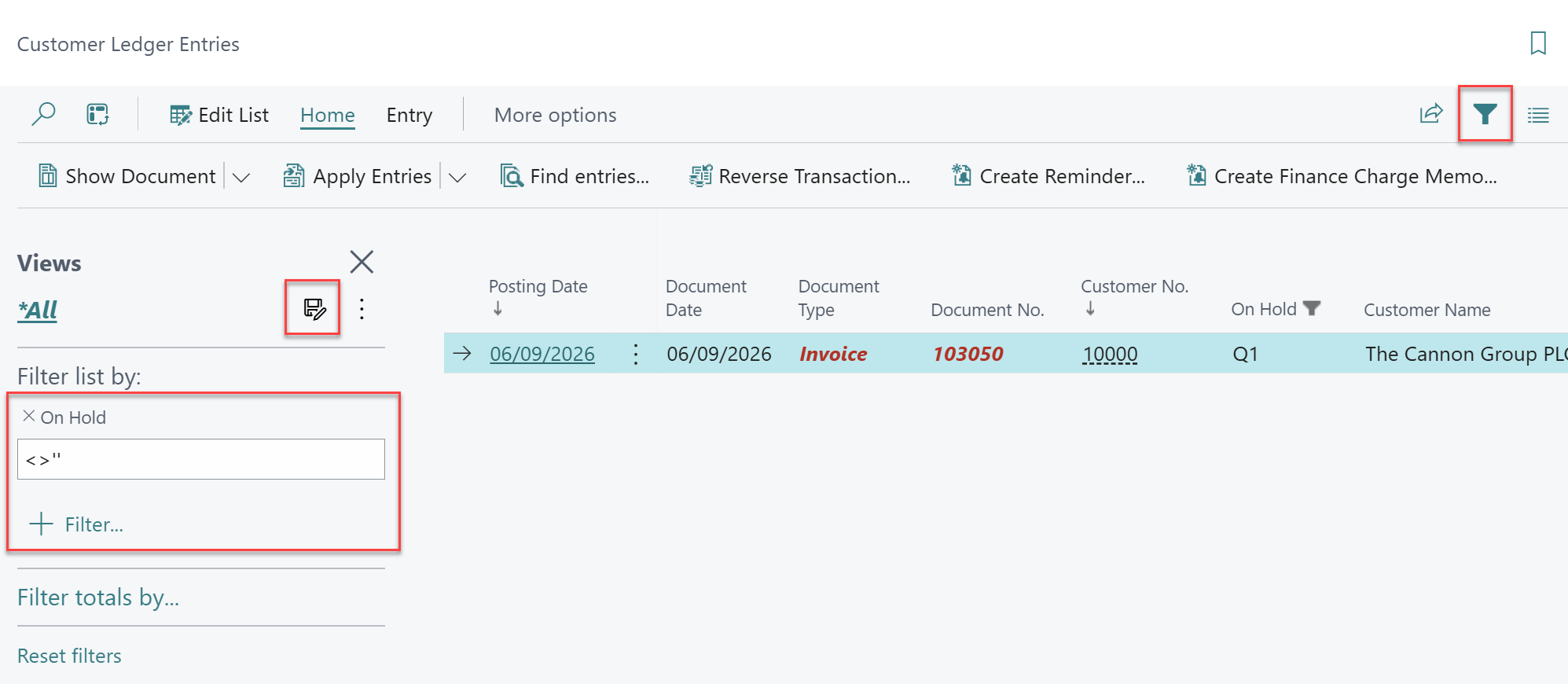
Once the filter has been applied, select the floppy disc icon to save the view.
Please note that the ‘’ characters are two apostrophes not speech marks. This catches a lot of people out and will result in the filter not working.
Now, let’s create a Saved View to filter only on Credit Memos and Payments that have yet to be applied. The first field that needs to be filtered on is the Document Type in which we need to select the Payment and Credit Memo options. Next, apply a second filter for the Open field and select Yes within the dropdown.
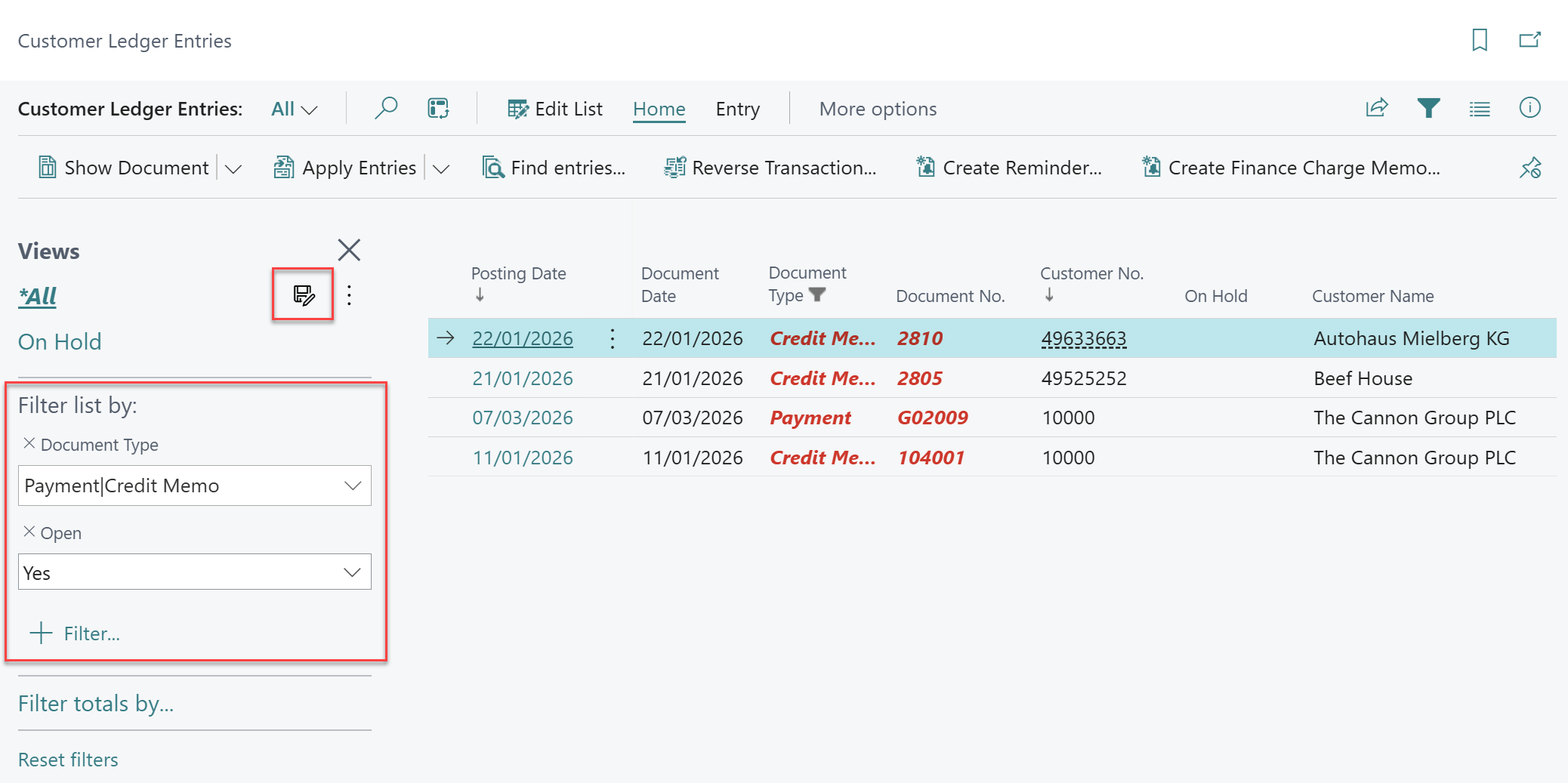
Once the filter has been applied, select the floppy disc icon to save the view.
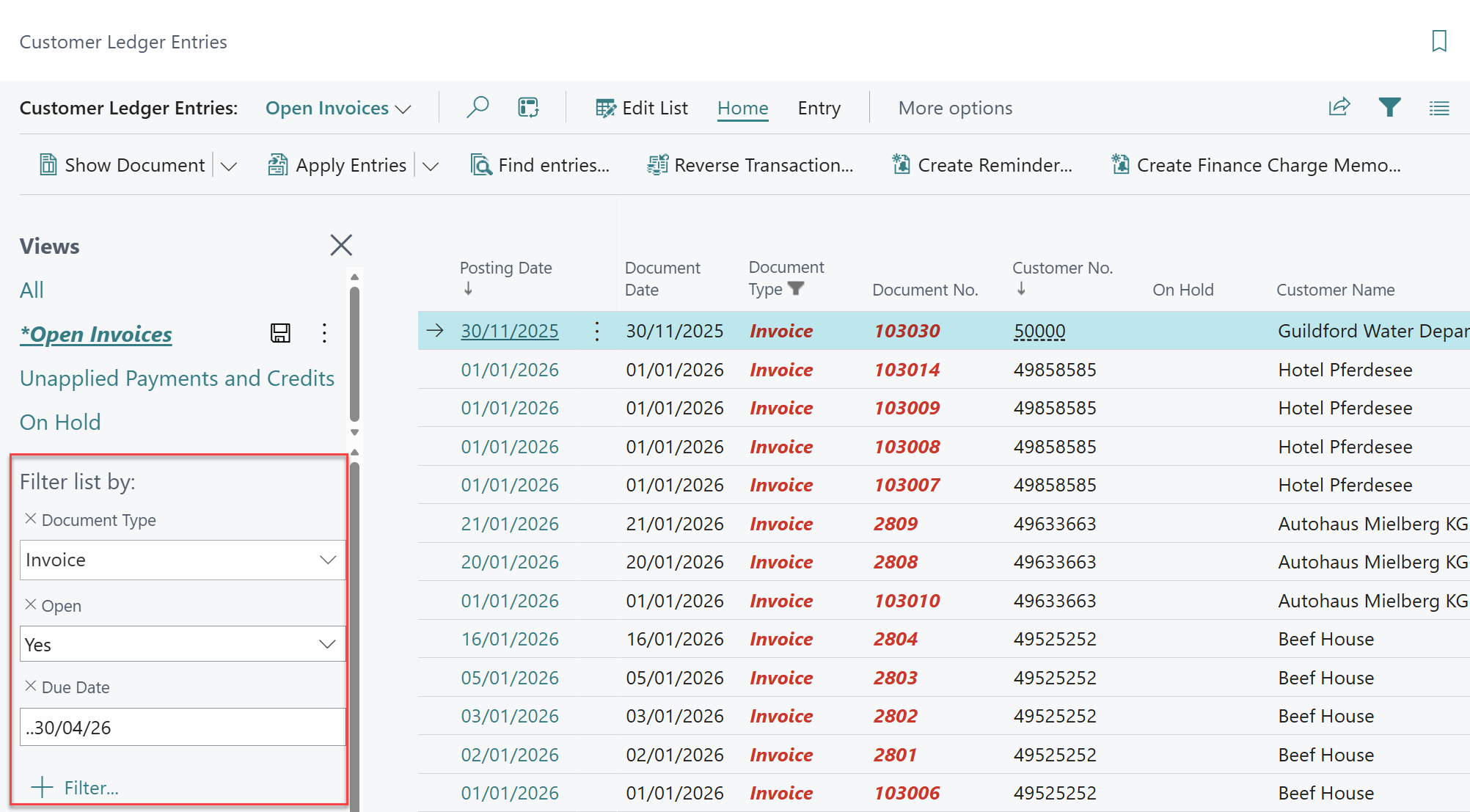
Next, let’s create a Saved View to filter on all Open Invoices. The first field that needs to be filtered on is the Document Type in which we need to select the Invoice option. Next, apply a second filter for the Open field and select Yes within the dropdown.

Once the filter has been applied, select the floppy disc icon to save the view.
This next Saved View builds upon the last to add a filter to show only Open Invoices that have a due date up to the end of the current week. The first two filters remain the same, with a filter for Document Type is Invoice and Open is Yes. The next filter to apply is for the Due Date field, enter ..cw to capture all invoices with due dates through the end of the current week. By using this date filter expression rather than a static date, the filter will automatically update each week, eliminating the need for manual adjustments.
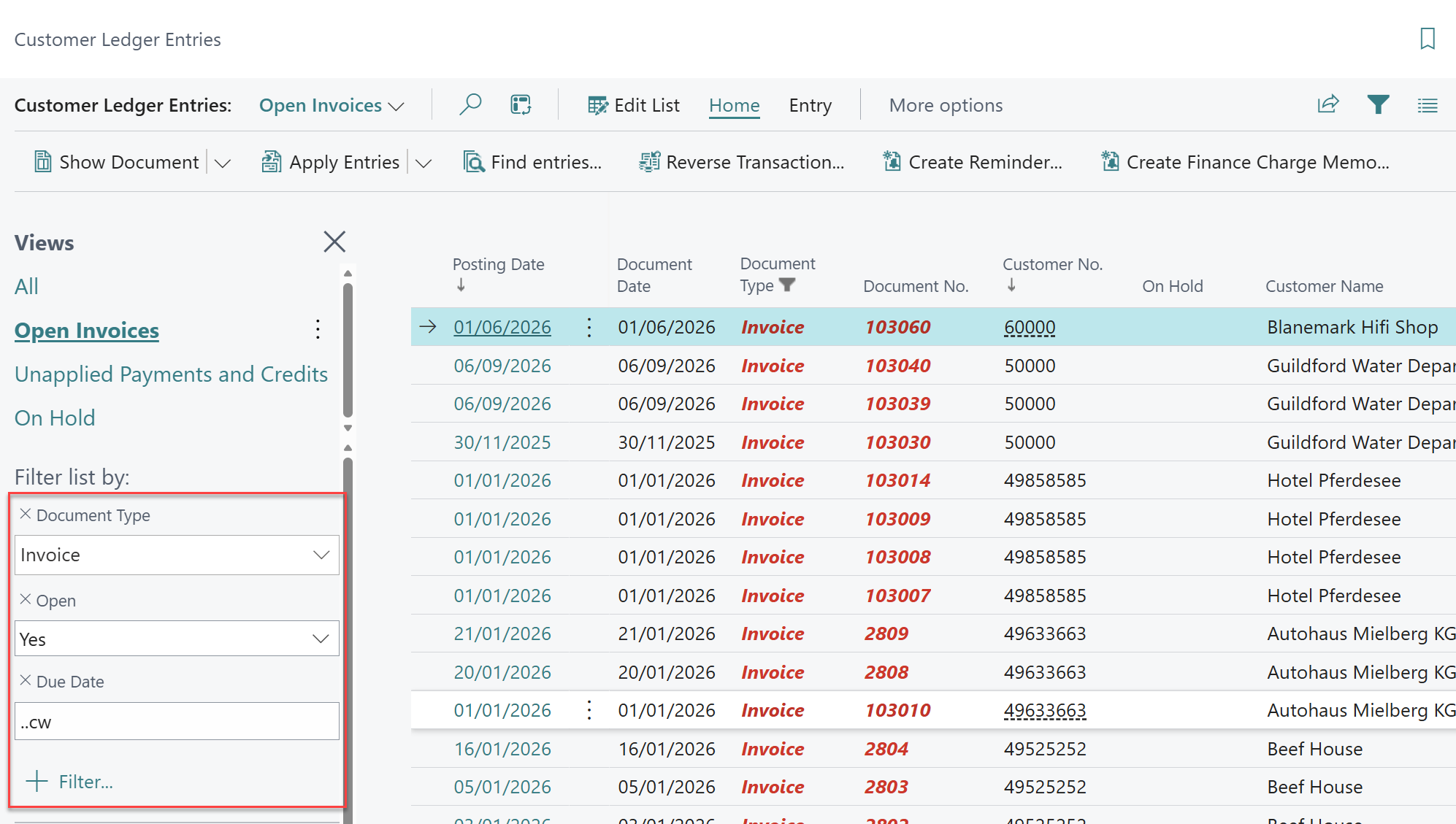
The final Saved View we will create is very similar to the last one, but this time will be Open Invoices that have a due date up to the end of the current month. Again, the first two filters remain the same, with a filter for Document Type is Invoice and Open is Yes. The next filter to apply is for the Due Date field, enter ..cm to capture all invoices with due dates through the end of the current month. By using this date filter expression rather than a static date, the filter will automatically update each month, eliminating the need for manual adjustments.
For Business Central training, or a conversation about moving your Business Central support to Tecman, drop us your details today.