











In Microsoft Dynamics 365 Business Central, List Views are saved versions of a list page that help you quickly access the records you need without reapplying filters each time. They’re available on list pages such as Customers, Vendors, Items, Sales Orders, Purchase Orders, G/L Entries and lots of others.
Using Sales Orders as an example, you might only need a small number of views, so there's no need to display every option.
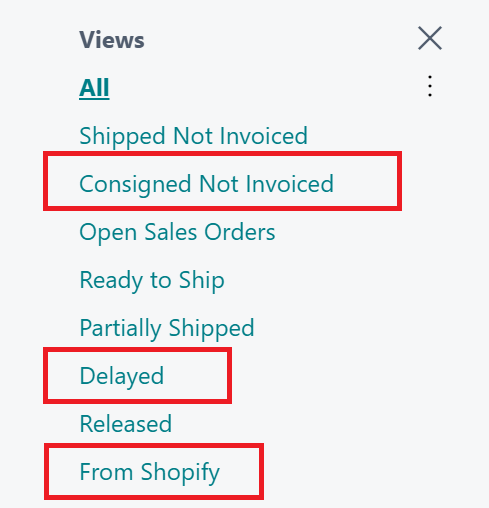
To keep the filter pane organised, you can remove or hide views (except preset views, which can't be removed).
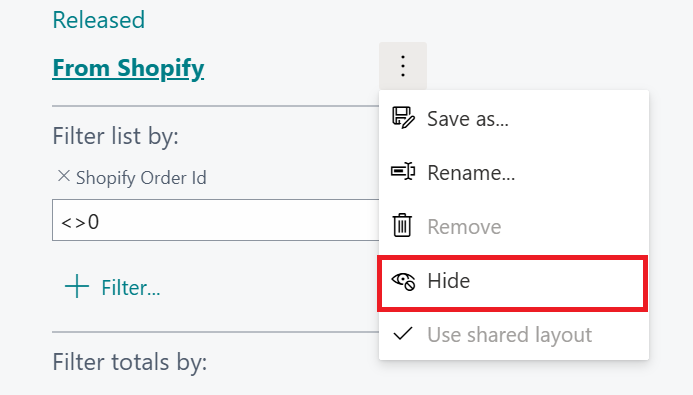
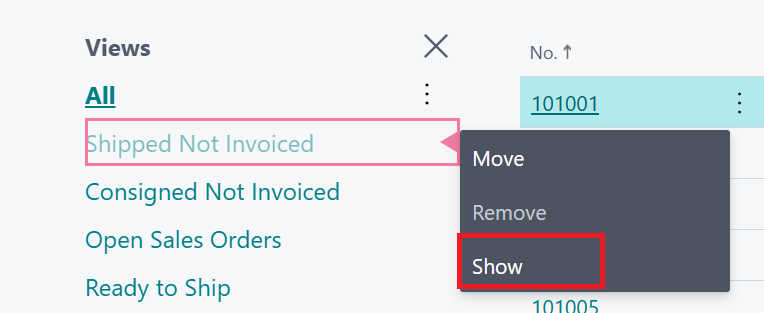
It’s important to note that removing a view will permanently delete that view whereas hiding a view means that you can unhide again later by choosing the Show action.
To unhide a view, you’ll need to personalise the page, which then allows you to show the particular view which adds it back to the available list.
It’s also possible to reset views using the clear personalisation and selecting Only Filtered Views/All but be aware that any custom views added will be permanently deleted.
Reduced clutter
Over time, users can accumulate many personal and system views. Hiding views keeps the filter pane cleaner and makes it easier to find the views you actually use.
Improved usability
Users can focus on the views that support their daily role or process rather than scrolling through a long list of rarely used options.
Safer than deleting
A hidden view is not removed from the system; it can be shown again later. This is particularly useful if you're unsure whether a view will be needed in the future.
Supports personalisation
Different users can hide different views to create a workspace that suits their role and preferences. Views are part of Business Central personalisation.
For Business Central training, or a conversation about moving your Business Central support to Tecman, drop us your details today.