










In Microsoft Dynamics 365 Business Central, there are several ways to invoice a purchase order, each supporting a slightly different operational scenario.
The most common methods – invoicing directly from the purchase order or manually creating a purchase invoice and using Get Receipt Lines – can be restrictive for more complex business requirements.
Recent enhancements in Business Central introduce extra flexibility, allowing purchase invoices to better reflect real‑world processes.
A new option, Get Order Lines, is now available on the purchase invoice.
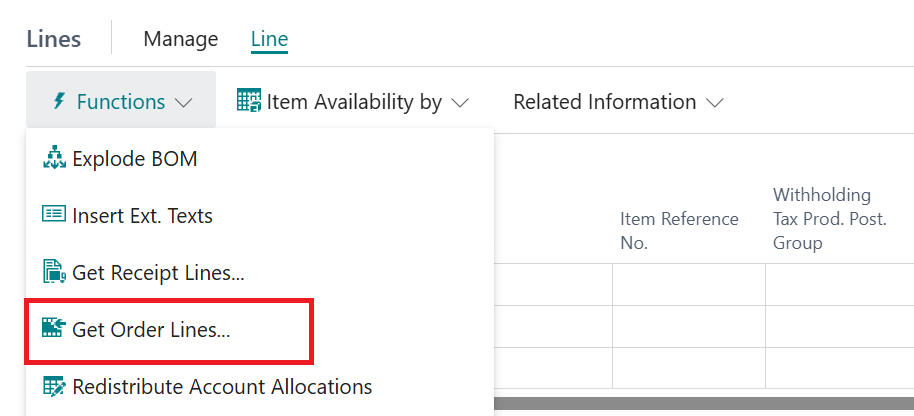
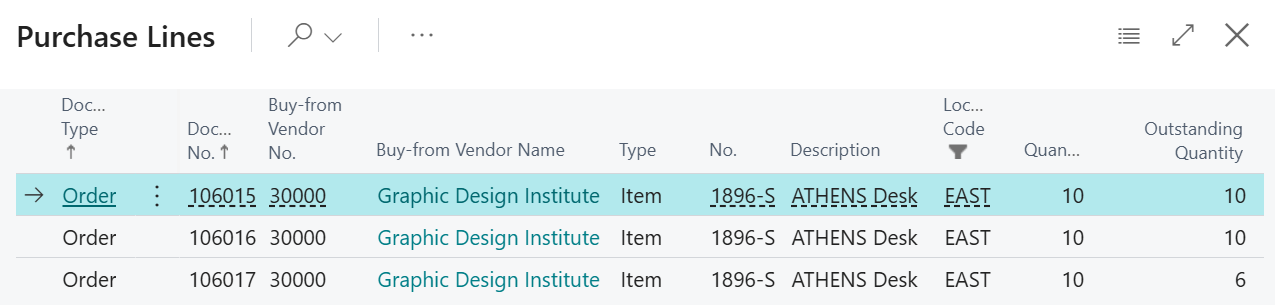
This function displays all purchase order lines which are received but not yet invoiced or not yet received allowing for the selection of the relevant lines in a single action.
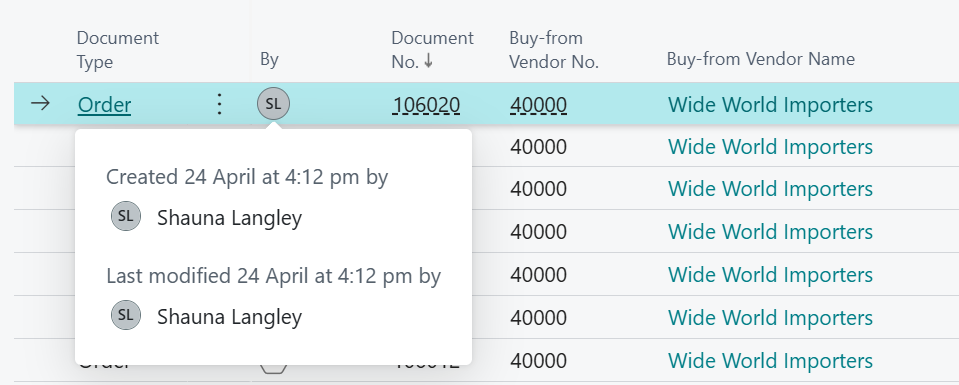
Side note: a nice addition to this page is an additional field which can be added by changing the layout options to display the created/modified by.
Interestingly, when drilling into Matched Order Lines on a purchase invoice line, Business Central can automatically associate existing receipts alongside quantities that are still outstanding.
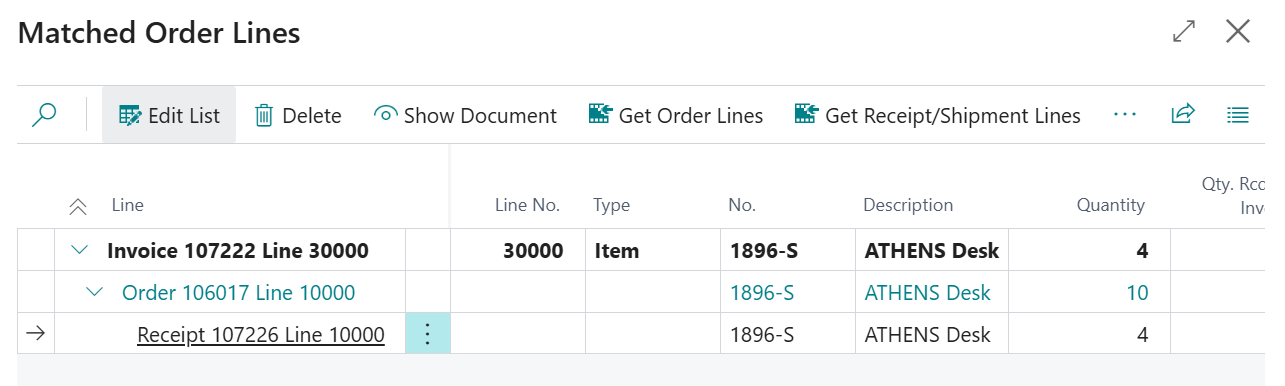
To avoid duplicate invoice lines, the item and quantity can be entered manually with the Get Order Lines available when drilling into the Matched Order Lines field to pull through the appropriate purchase order lines. The most suitable approach will depend on how time‑consuming, manual entry would be for the business.
This means a single purchase invoice line can now be matched to multiple purchase order lines, rather than the traditional, one‑to‑one relationship.
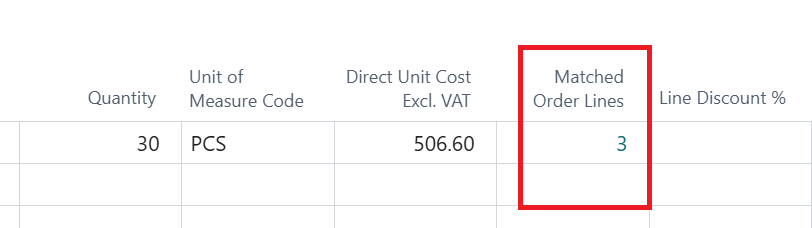
The invoice must reflect the full quantity before being posted. However, a key point is that Qty. to Invoice is editable within the Matched Order Lines page. This allows adjustments where necessary, while still validating that all quantities match at the point of posting.
An additional scenario is supported through the Receipt on Invoice field, available on the purchase order. This setting must be applied manually and cannot be defaulted from the vendor.
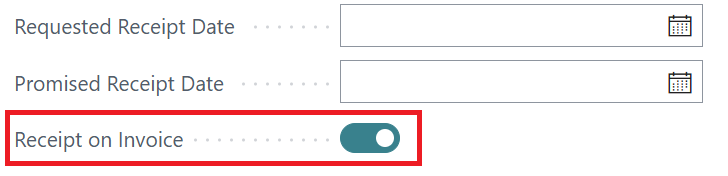
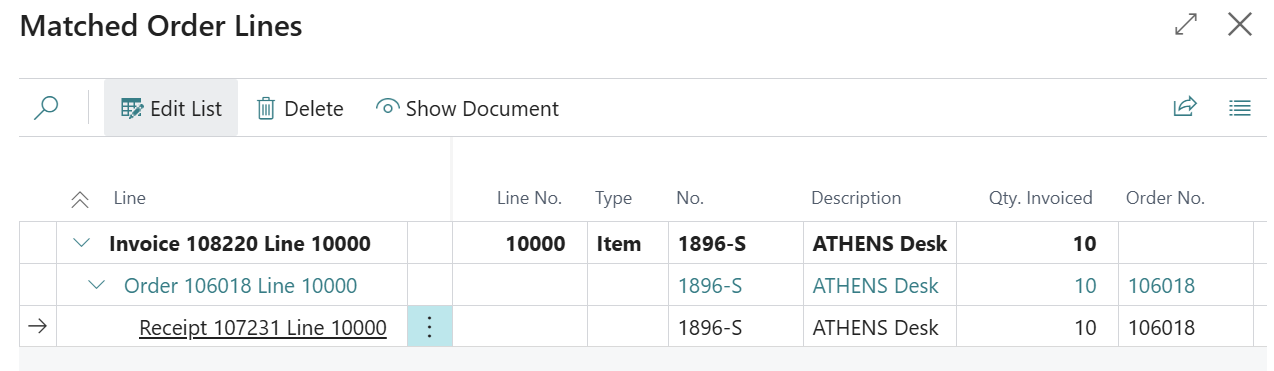
When enabled, the purchase receipt is generated exclusively through the matched order lines on the purchase invoice. After posting, drilling into Matched Order Lines from the posted purchase invoice displays the associated purchase receipt, completing the process.
When using full warehouse functionality, such as directed put‑away and picks, the process remains largely the same. The key difference is that purchase order lines should be matched before entering quantities on the purchase invoice line.
By entering the quantity first, the standard warehouse receive is required message will display if matched order lines have not been processed.
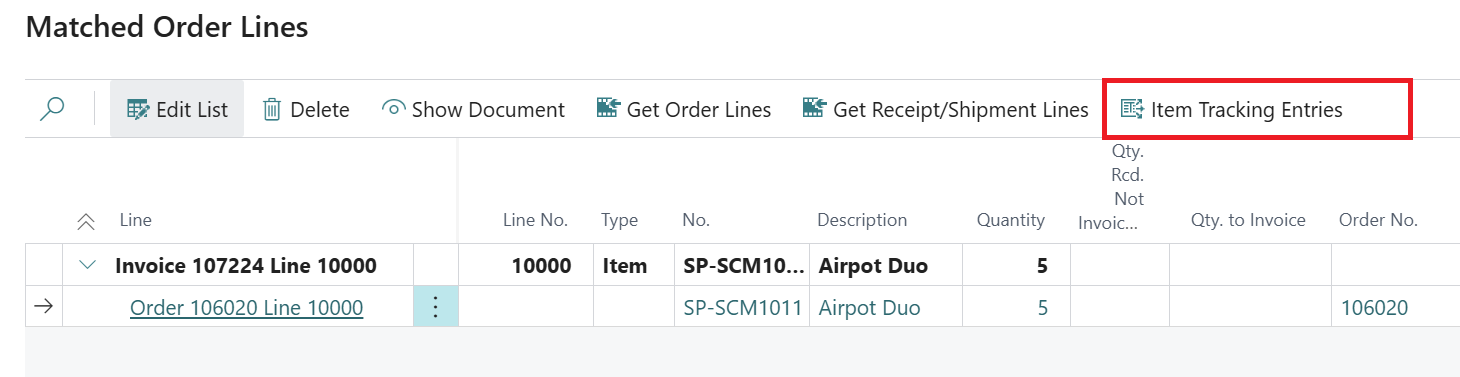
For lot or serial tracked items, item tracking details can be reviewed directly from Matched Order Lines, allowing validation before posting the invoice
These enhancements significantly extend purchase invoice processing in Business Central, supporting more complex and realistic operational scenarios that were previously restricted.
For Business Central training, or a conversation about moving your Business Central support to Tecman, drop us your details today.