









For manufacturers using Microsoft Dynamics 365 Business Central, correcting production posting mistakes hasn't always been straightforward. You might have found:
The good news is that Business Central now gives users more options for correcting these mistakes, helping to keep inventory and costing information accurate. So, how are production postings amended in Business Central?
From a Released Production Order, you can open the related Item Ledger Entries. Alternatively, you can find and filter the entries directly from the Item Ledger Entries page. In this example, users can reverse consumption, output or both. This also works with serial-tracked, lot-tracked and non-tracked items, making it easier to correct inventory records without relying on separate corrective postings
You have the option to select one or multiple entries and then must navigate to the Reverse Production Entry action.
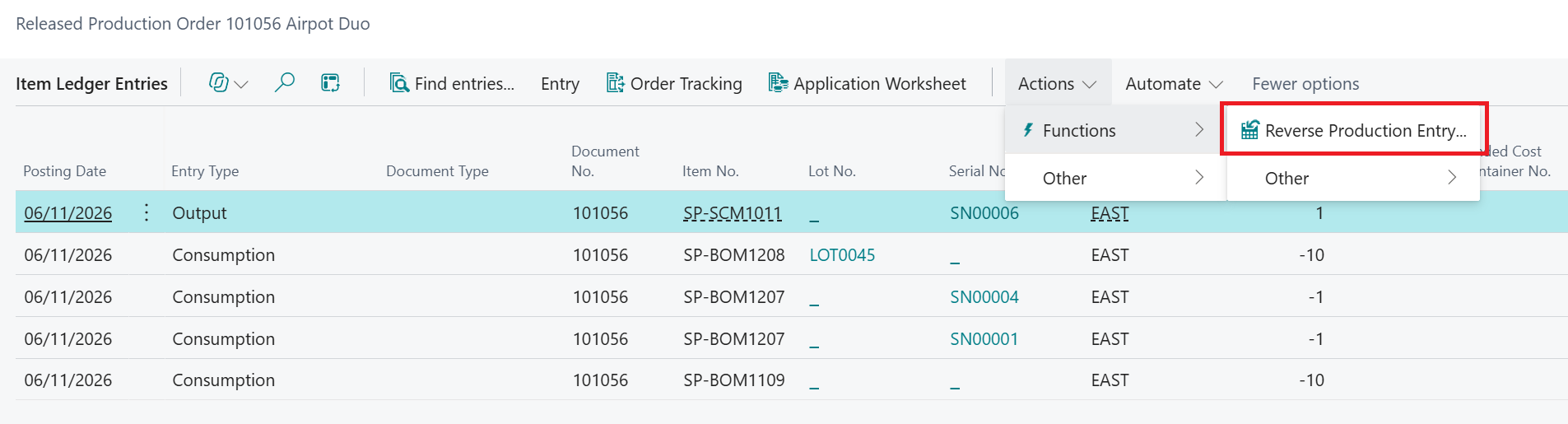
Once you’ve confirmed that the entries should indeed be reversed Business Central will post correction entries.
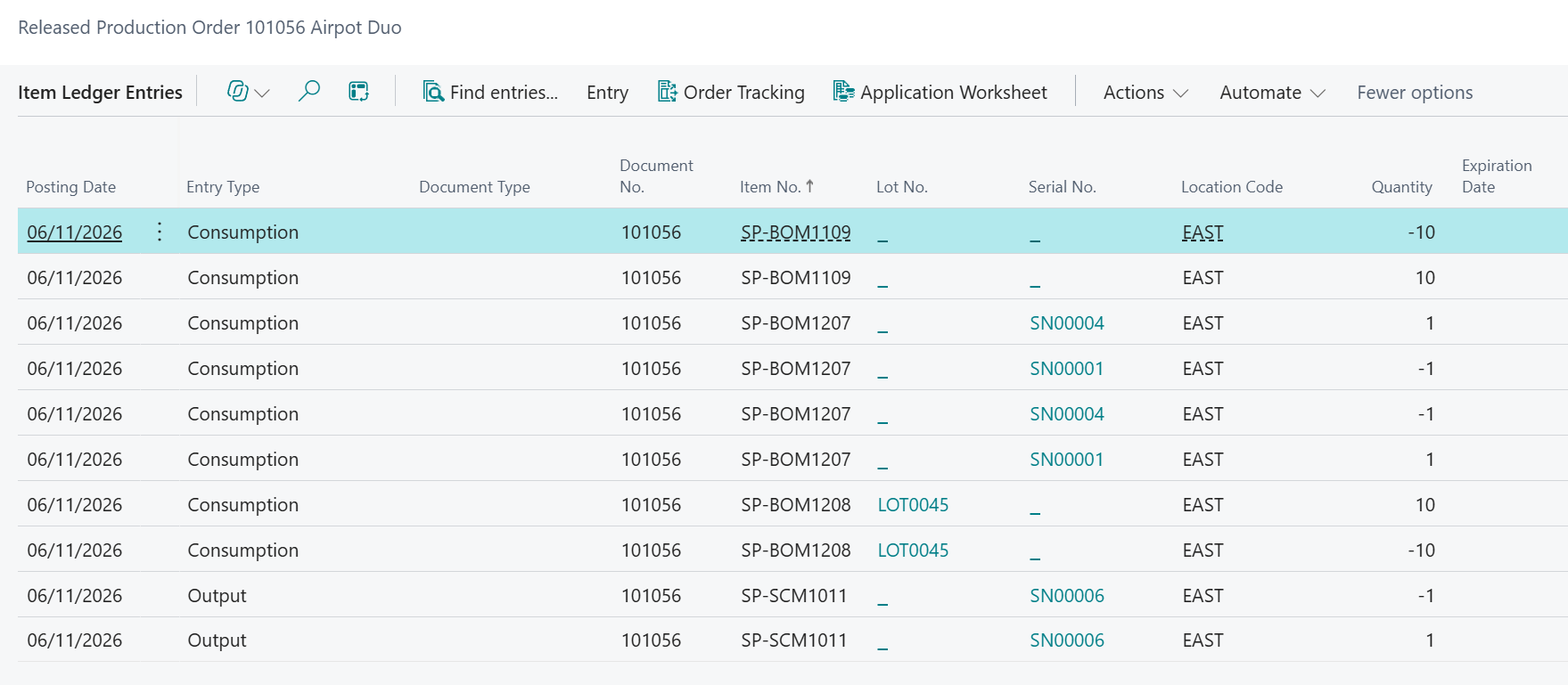
With this one example, the user can reverse consumption and/or output postings along with allowing items that are serial tracked, lot tracked or neither making it much easier to keep inventory postings correct.
But what if you've already finished the production order before spotting the mistake? Previously, correcting the stock position could mean using item journals. Business Central now allows a finished production order to be reopened from the Finished Production Order card.
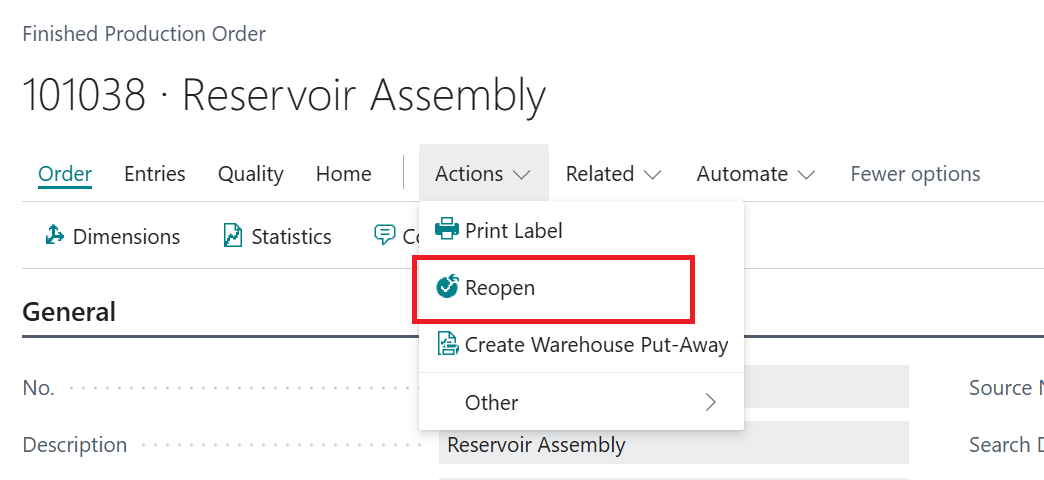
Selecting the reopen action moves the production order back into the released production order list where you use the previous steps to fix any posting issues.
Important: A finished production order can only be reopened once.
There's another scenario to consider: consumption has been posted, but production stops before any output is recorded.
Previously, some output had to be posted before the production order could be finished. This could lead to additional item journal corrections. Business Central now includes the "Allow Finishing Prod. Order with no Output" option in Manufacturing Setup.
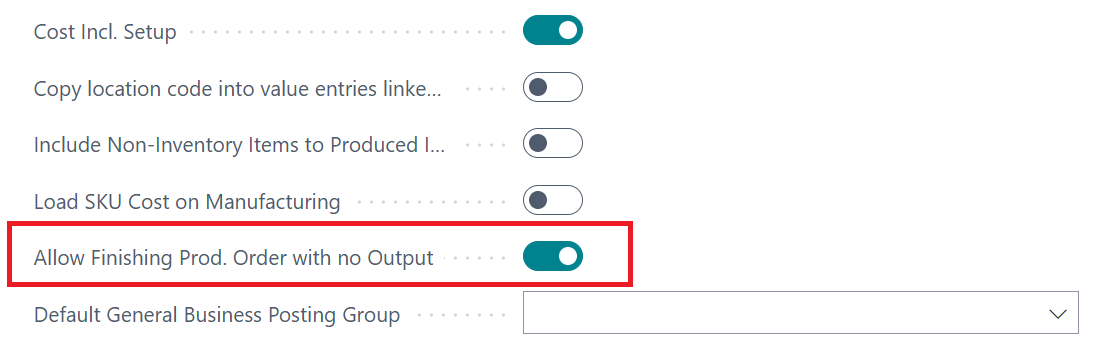
With the setting enabled, you can finish the production order even when no output has been posted. Business Central will still warn that not all output and consumption has been posted before the order is finished
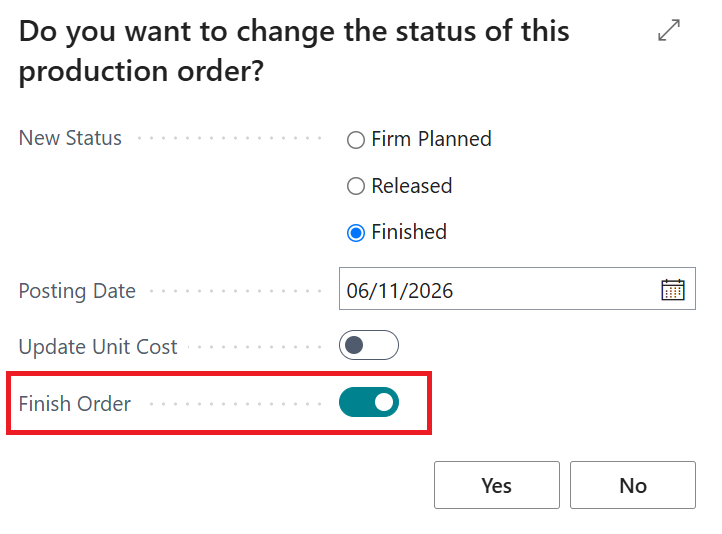
This time, however, you can proceed and close out the production order. Important to note that once a production order has been posted with no output, the setting on the manufacturing setup cannot be switched off.
These options make it much easier to correct production posting mistakes when they happen. However, correction tools shouldn't replace good production processes. Where errors are happening regularly, it's still important to understand the root cause and fix the process rather than continually correcting the resulting entries.
For Business Central training, or a conversation about moving your Business Central support to Tecman, drop us your details today.