










If your Microsoft Dynamics 365 Business Central users operate in different languages, you might have encountered challenges when creating and sending reports. Reports are generated according to each user's language settings, which can make the resulting documents hard for recipients to understand. However, now with Version 28 of Business Central, it’s possible to set a Default Language Code for all customer and vendor documents, ensuring consistency. Here’s how to do it in two simple steps!
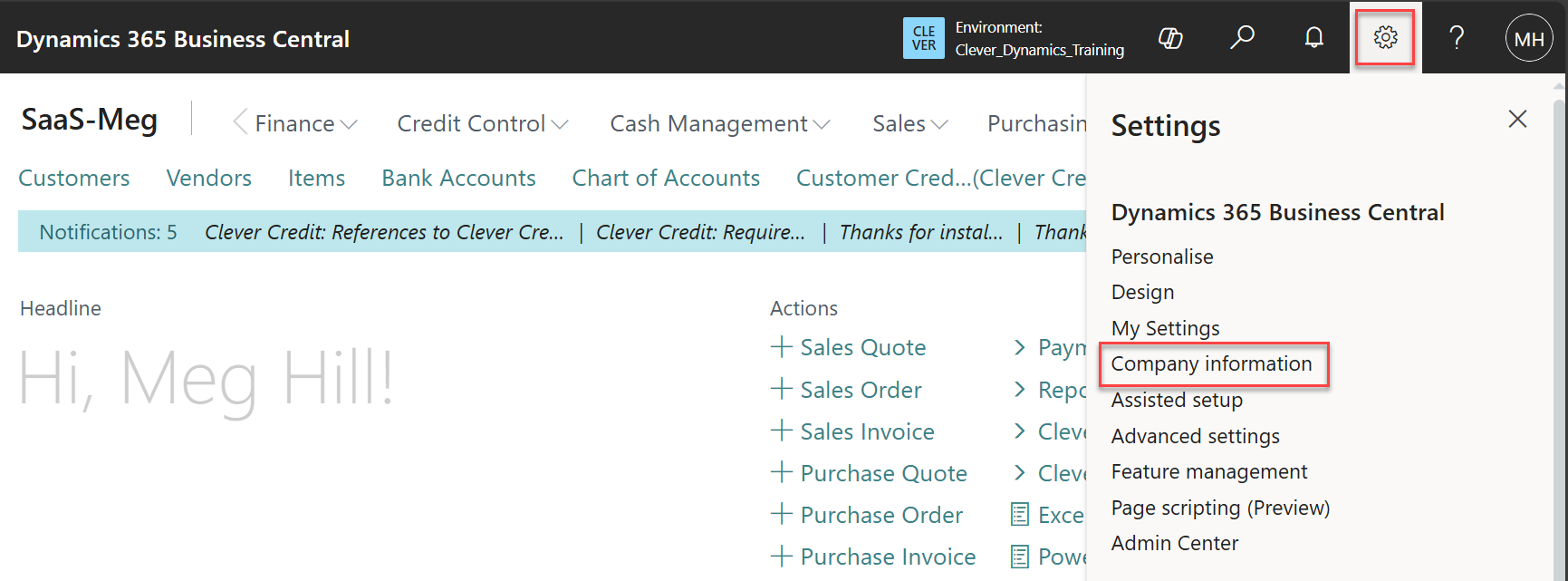
1. Go to the Company Information page, either by searching for it or clicking the cog icon in the top right and selecting the fourth option.
2. Next, navigate to the Communication FastTab and populate the Default Language Code field.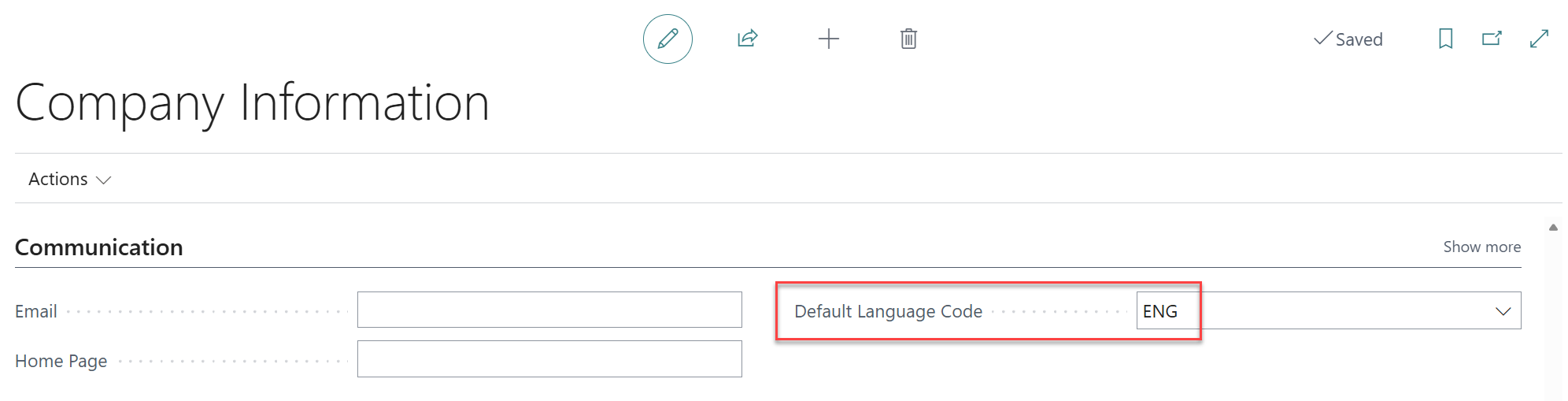
Please note that this field is company-wide and will impact all users. However, the language code can be defined against Customer and Vendor Cards, within the Address & Contact FastTab, should they have specific language requirements.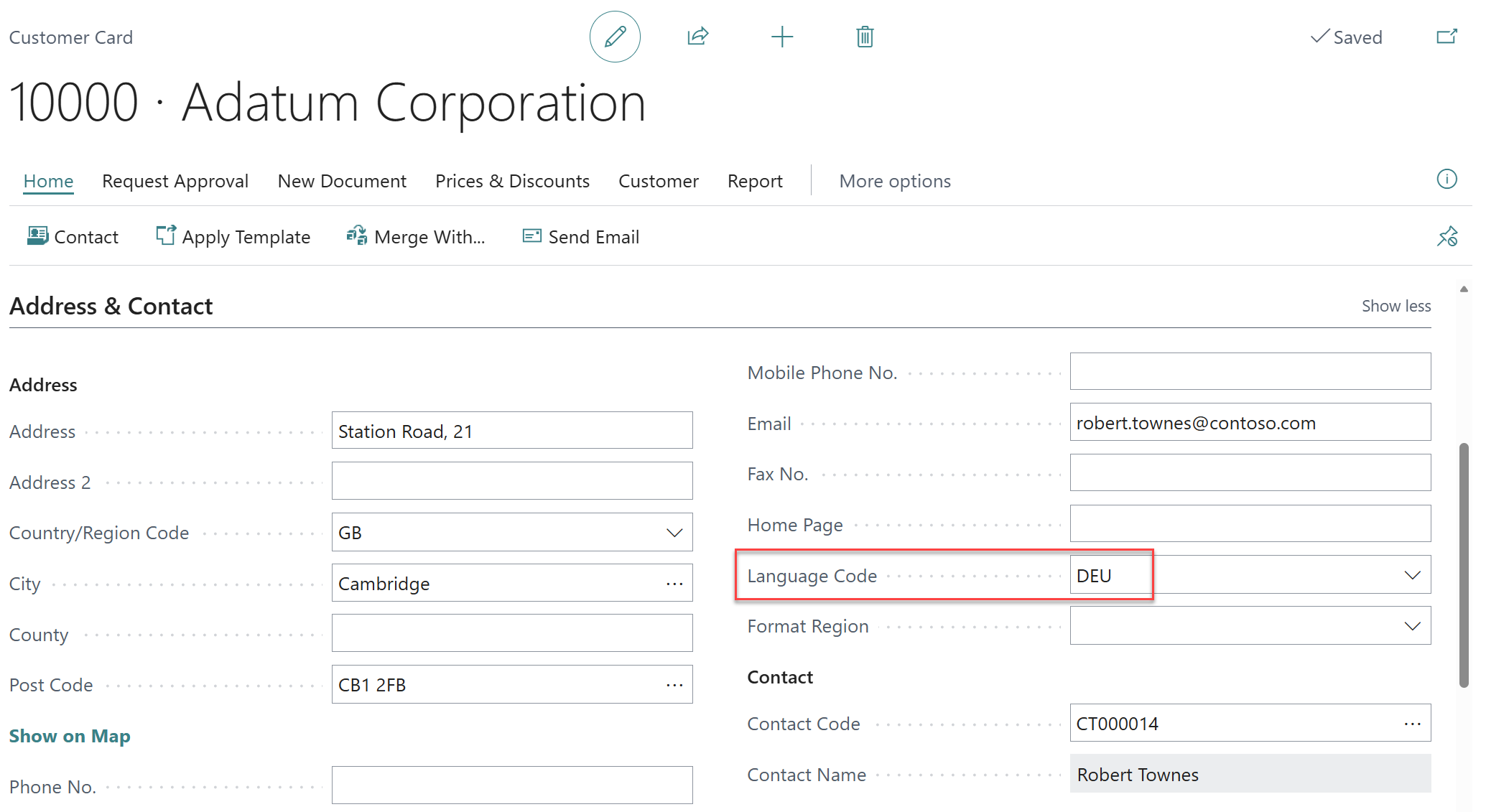
For Business Central training, or a conversation about moving your Business Central support to Tecman, drop us your details today.