










Dimensions in Microsoft Dynamics 365 Business Central are tags or attributes that can be assigned to transactions (such as sales orders, purchase invoices or general ledger entries). They’re mainly used to:
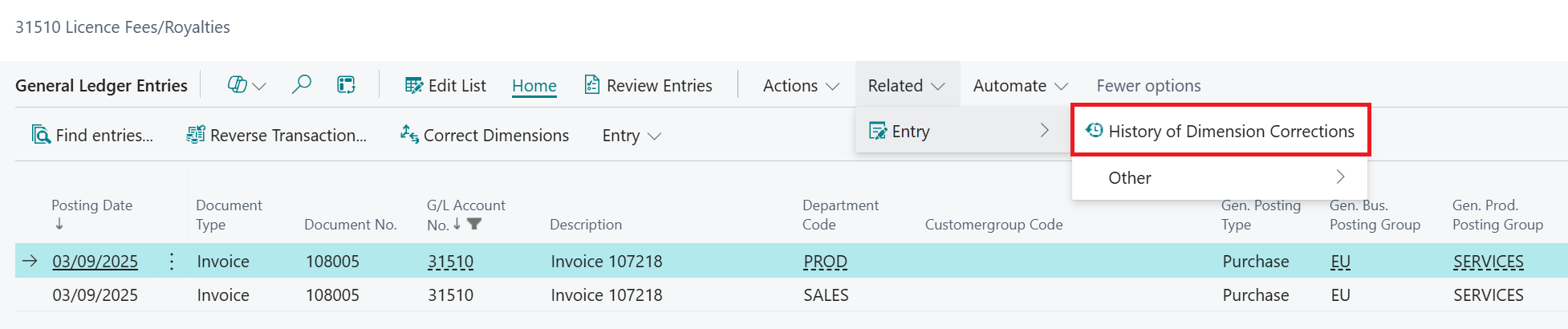
If dimensions are posted incorrectly, the impact can ripple across financial and operational processes. Traditionally, you’d reverse and re-enter the transaction to fix it. But since Business Central 18, there’s a quicker way – the Dimension Correction feature.
This feature doesn’t change the original transaction, but it does let finance teams amend general ledger entries.
Once you’ve identified the incorrect entry, you can correct dimensions, adding any that were missed. Amendments and additions are highlighted in bold.

You can also:

Every correction is logged with a full audit trail, including who made the change and when.
Where possible, define default dimensions against G/L accounts, customer, vendors and items. These are assigned at the time of entry, meaning the user doesn’t have to think about what the correct value is to enter.
Enable Allowed Values filters and Dimension Combination rules to prevent invalid postings.
Where a dimension has been defined as code mandatory, setting the Allowed Values filter to the acceptable values means that anything outside of that will give the user an error.
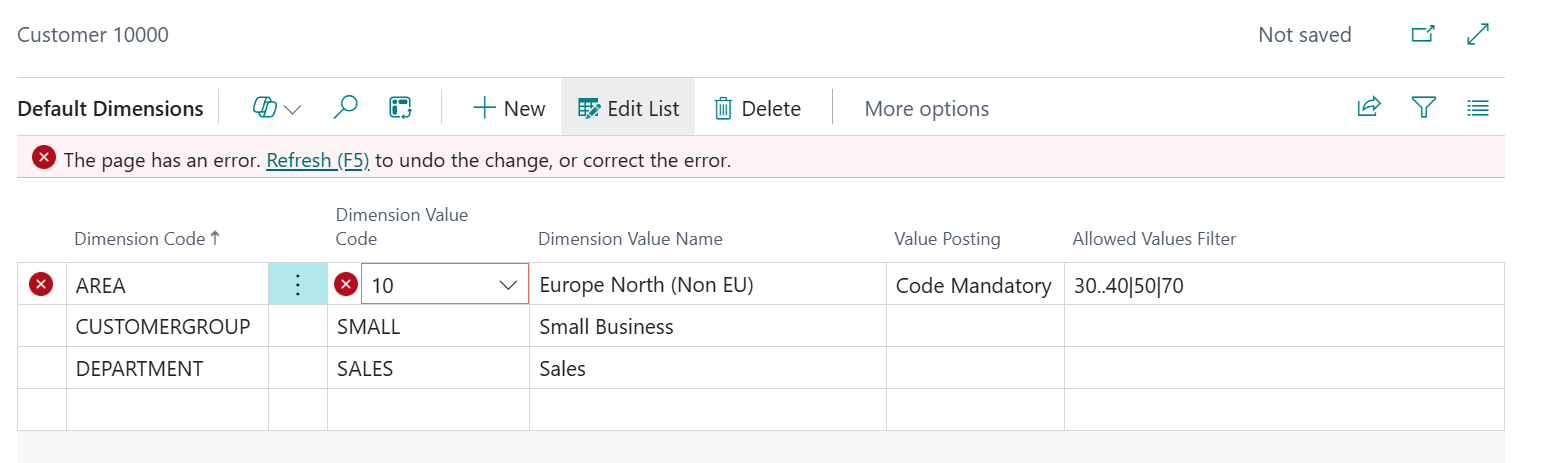
Defining a dimension as code mandatory ensures that a value is required before posting can occur and by adding the additional layer of allowed values helps avoid any incorrect postings.
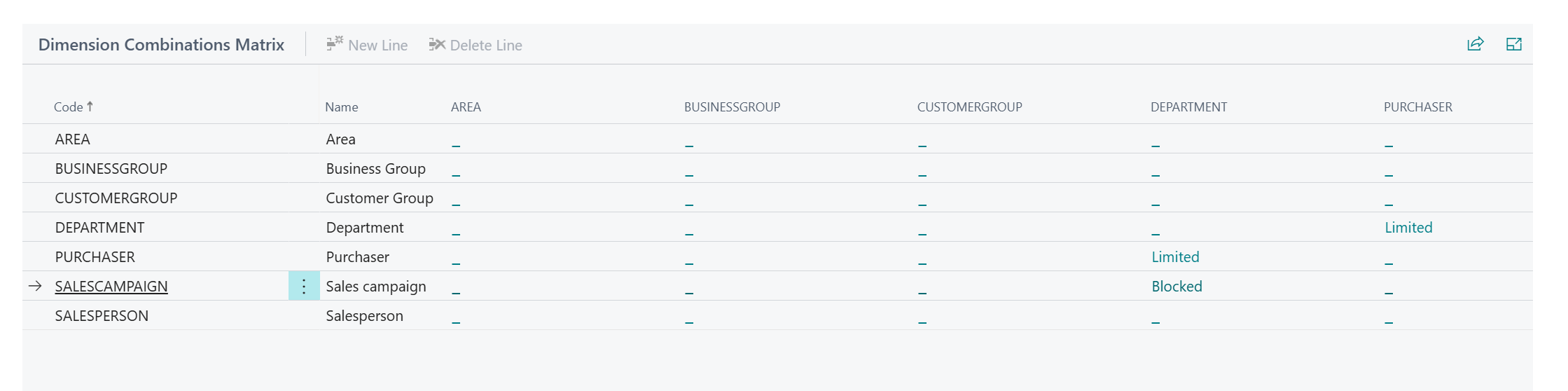
Another option is Dimension Combinations. Only combinations that have not been blocked can be posted on transactions, preventing errors and maintaining data integrity.
For example, to limit the dimensions for Department and Purchaser, select the combinations to blocked to prevent errors in posting.
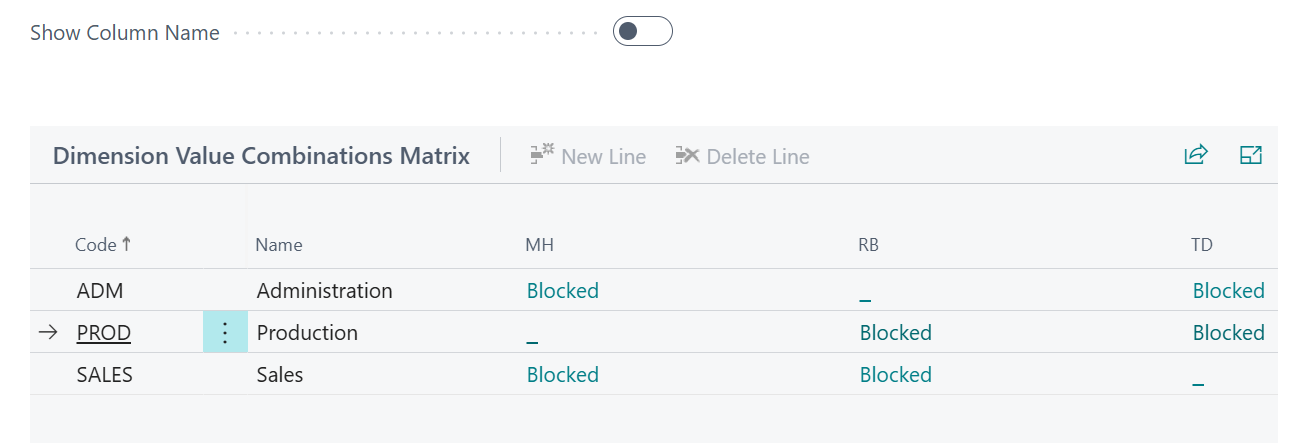
If any of the dimensions should not be posted together then block completely which will happen with SalesCampaign and Department.
By putting these checks in place, you’ll prevent issues at the source – saving time and keeping your data accurate.
For Business Central training, or a conversation about moving your Business Central support to Tecman, drop us your details today.