










Last year, we published a Microsoft Dynamics 365 Business Central troubleshoot blog on fixing Permission Errors. Since the BC28 Wave 1 2026 release, we have a new tool that can easily help you identify:
• What User(s) have a certain Permission Set(s)
• What Permission Sets could fix an error/contain which Permissions
• What Permission Sets are associated with certain installed apps/extensions
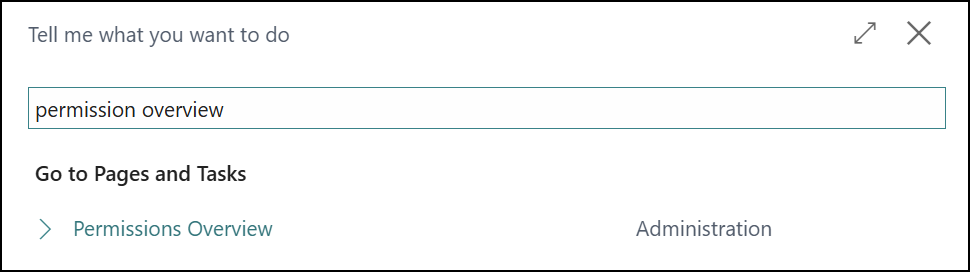
This is all done via the new Permissions Overview page which you can find from the search!
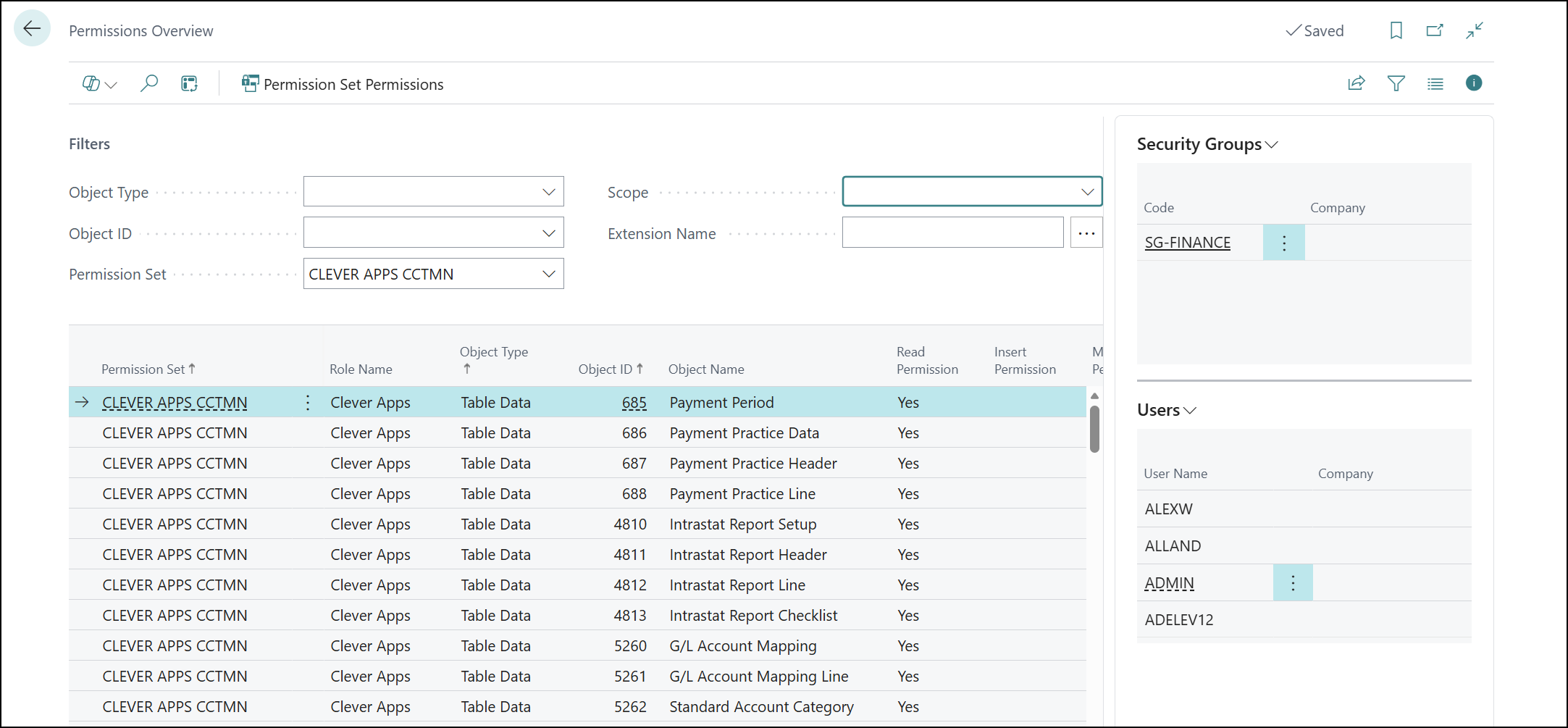
This page is pretty simple. It has a top section for filtering down, the Permission Sets and what Permissions they give in the middle, and the FactBox which will show the Security Groups/Users assigned these Permission Sets.
So, lets break down how this tool can be used for our three examples we laid out at the start:
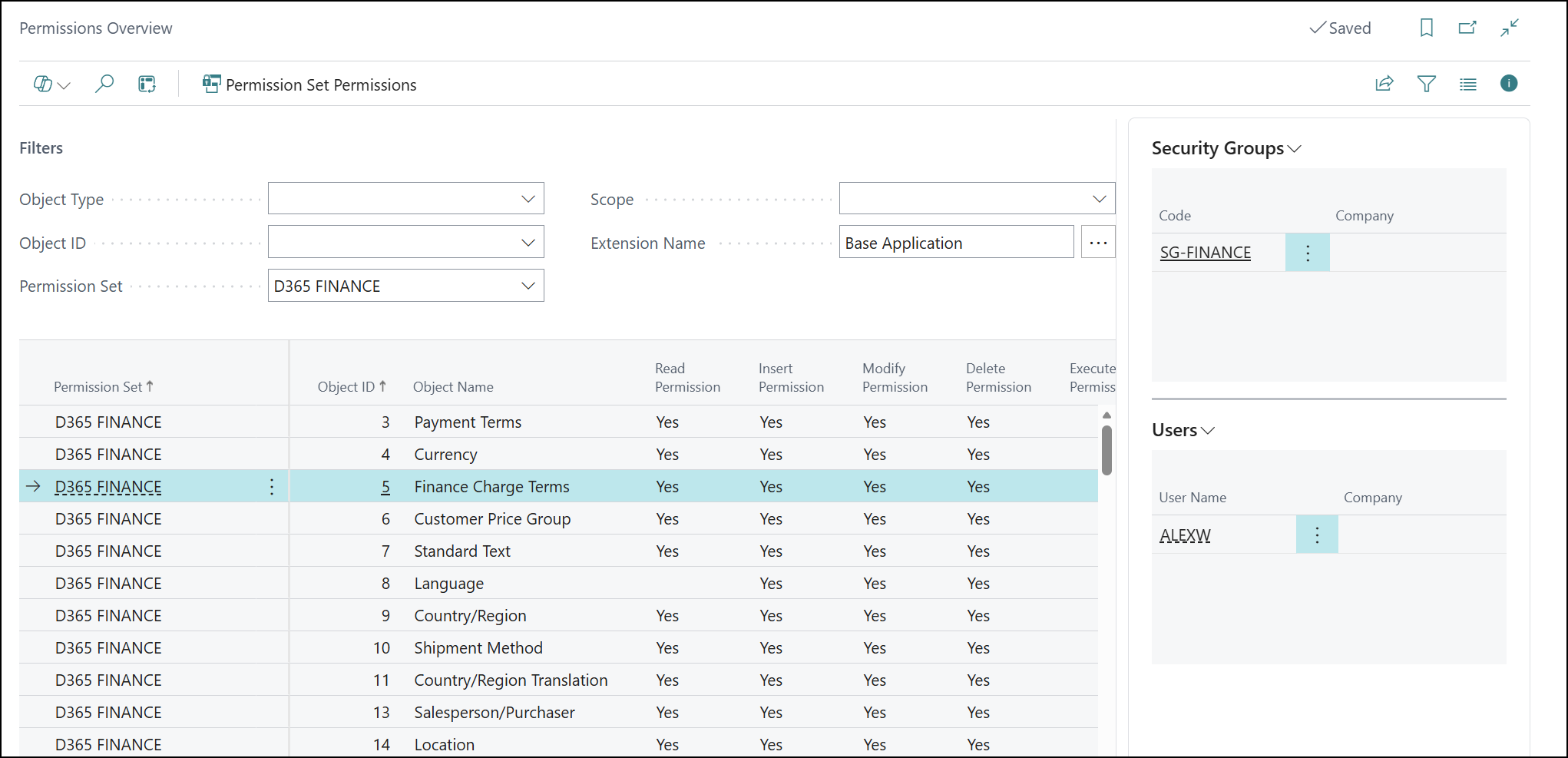
Want to know what users a Permission Set is assigned to? Simply use the Permission Set filter across the top for Permission Set to the one in question. This will then show all the effective permissions in the middle that this set would give a user. The FactBox will show the Security Groups and Users it belongs to.
For this, you first need to know the Permissions Error message in question first. We’ll use this as an example:
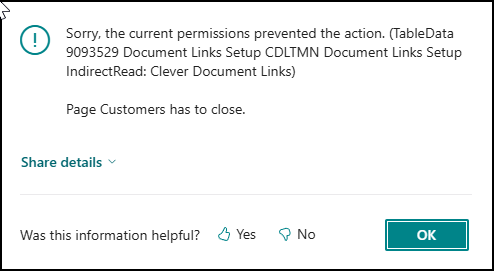
We will use the information here of the kind of error and match it to the filters in the Overview page, TableData for the Object Type and 9092529 for the Object ID.
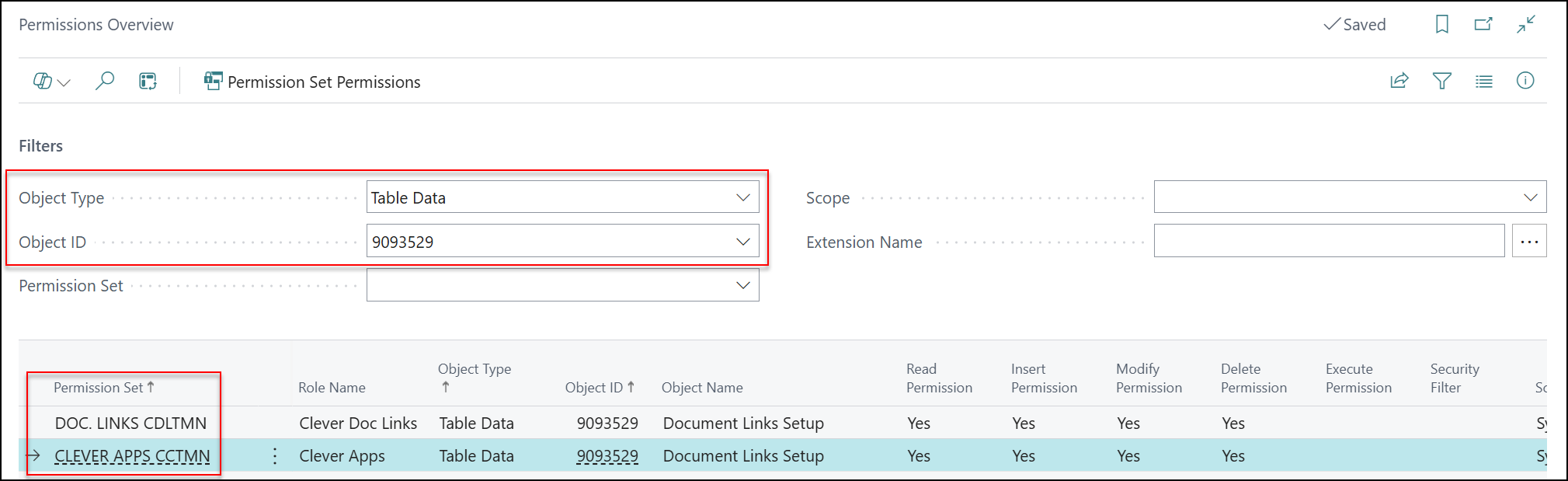
This will then filter the page down to all the Permission Sets in the system that contain this Permission the user is missing. In this case, we could potentially patch the Permissions gap the user might need with DOC. LINKS CDLTMN or CLEVER APPS CCTMN as both contain the Read level the user was missing in that error message.
Note: You should always review a permission set first before assigning blindly, to ensure it gives the user what they need and not extra stuff they shouldn’t have.
This is often one that will trip you up. You install an app, or have an extension for BC made, and your users get a Permissions Errors due to not having any rights around the new/extended functionality. So, what Permission Set(s) grant the right permissions for the app? Well, simply filter the Extension Name field to the app in question and you’ll easily get the answer now:
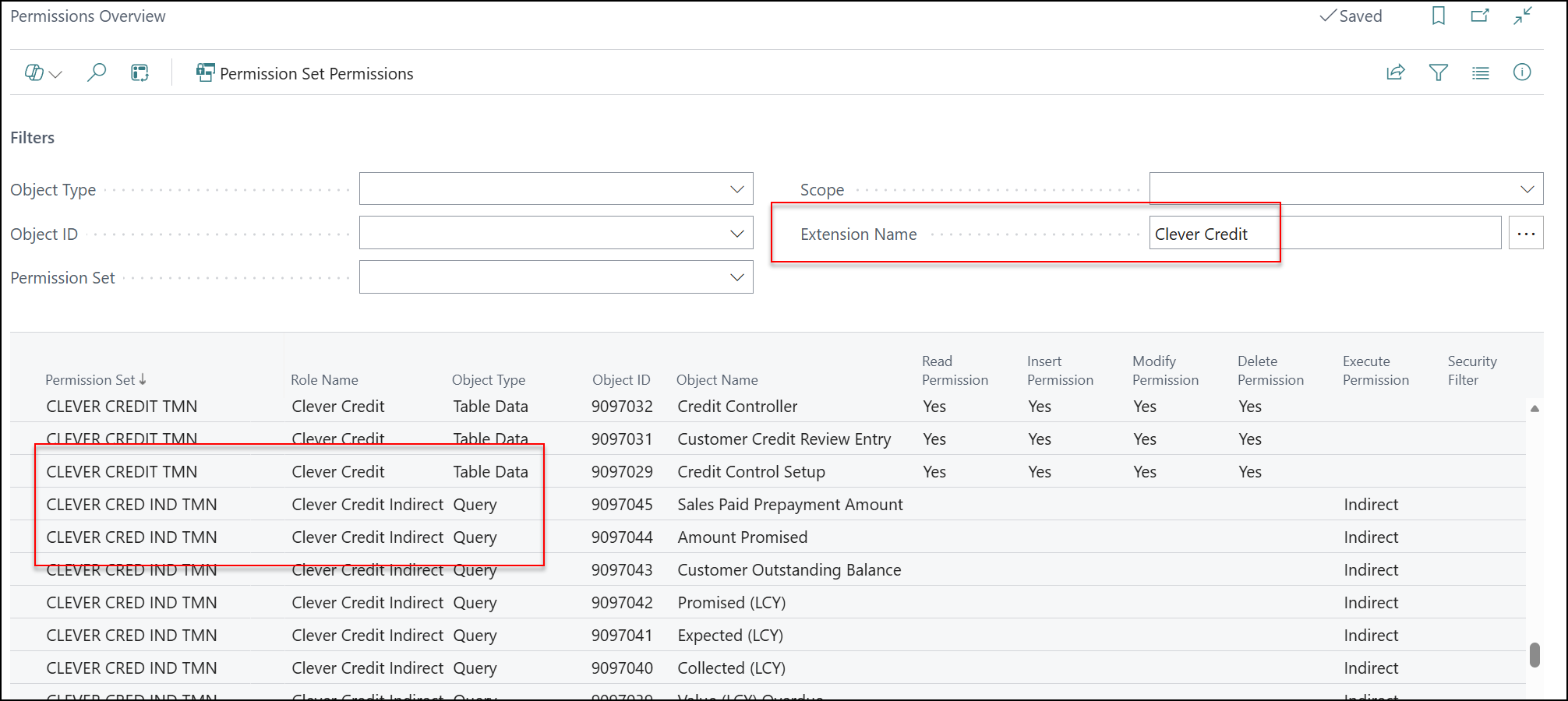
Here, we filter for Clever Credit, a new app on the system for credit control. This has helped find two potential sets I could apply to my users: Clever Credit or Clever Credit Indirect. Now I can inspect these in more detail and see which would be more relevant for my users.
And that’s the new Permissions Overview page! It’s a really powerful tool for giving you more insight to your Permissions. Please ensure you review every Permission Set before assigning however to ensure any you may apply will give the correct security to your users and not open your system up too much to them.
For Business Central training, or a conversation about moving your Business Central support to Tecman, drop us your details today.